
Your screen freezes during a video call, the printer vanishes from Settings, or an update stalls at 87 percent for the third time. Windows 11 troubleshooting usually starts with a simple question: which fix actually matches this symptom? Random clicking through menus tends to make things worse, not better.
Quick answer: Match the symptom to the cause first, then apply the smallest fix. For most problems that means restarting the PC, running the built-in troubleshooters, checking for updates and driver issues, and testing your internet connection. If a recent change broke something, roll it back instead of reinstalling Windows.
This guide walks through the causes behind the most common Windows 11 problems, the order to try fixes, and the habits that prevent repeat failures. You will finish with a clear checklist you can work through whenever something breaks.
What Is Windows 11 Troubleshooting and What Does It Cover?
Windows 11 troubleshooting is the process of finding the cause of a problem and fixing it with the least disruptive method available. It is not a single tool. It is a set of built-in utilities, safe modes, and manual checks that narrow down where a fault lives.
Microsoft groups these problems into recognizable categories. Knowing the category tells you which tools to reach for first.
Peripheral and printing faults form a category of their own. A printer that disappears from Settings, a mouse that stutters, or a monitor stuck at the wrong resolution usually traces to a connection, a port, or a driver that needs reinstalling.
Hardware and driver problems
A driver is the software that lets Windows talk to a device. Faulty or outdated drivers cause display glitches, audio dropouts, and Bluetooth devices that keep disconnecting. Windows 11 ships with Device Manager and Windows Update, which together handle most driver repairs automatically. Symptoms often appear after a major update, because Windows may swap in a generic driver.
Performance and app crashes
Sluggish boot times, sudden restarts, and apps that freeze usually trace back to one of three causes: too many startup programs, insufficient memory (RAM), or corrupted system files. Task Manager shows what loads at startup and which process is eating CPU or memory. The System File Checker (sfc /scan/) repairs damaged Windows files from an elevated Command Prompt.
Networking and connectivity
Wi-Fi that connects but shows "no internet," or a VPN that blocks local devices, is common. Windows 11’s Network & Internet troubleshooter resets adapters and renews the IP address automatically. For deeper checks, the Command Prompt offers ipconfig /flushdns and ping to confirm where the connection fails.
Updates and activation
Windows Update failures produce specific error codes, and each code points to a cause. The Windows Update troubleshooter clears stuck download caches. Activation issues often appear after a motherboard swap or a Microsoft account change, and they need a license check rather than a technical repair.
A crash, a stalled update, and a missing printer all look like "Windows is broken." Each has a distinct cause. Naming the symptom narrows the fix before you open a single menu.
Takeaway: Windows 11 troubleshooting is diagnosis first. Identify whether the fault is hardware, performance, network, or update related, then choose the matching tool.
Why Windows 11 Troubleshooting Matters for Everyday Use
A stalled update or a broken driver does not stay a small problem. It interrupts work, blocks security patches, and can hide a failing hard drive. Treating symptoms early keeps small issues from becoming data loss.
Security is the strongest reason. Windows 11 receives monthly security updates, and a device that cannot install them stays exposed to known threats. Windows Update failures are a security problem, not just an inconvenience. Clearing a stuck update restores your protection within minutes.
Cost matters too. Many "my PC is slow" complaints end with a paid repair visit when the real cause is a dozen startup apps and a nearly full drive. Checking startup load and free space takes five minutes and costs nothing.
Slow fixes also affect the people around you. A shared family PC that will not print or join video calls disrupts homework and remote work alike. Handling the issue early keeps one broken device from becoming everyone’s problem.
Small habits compound over a machine’s life. A PC that gets monthly updates and occasional driver checks typically lasts longer and needs fewer repairs than one left untouched until something fails.
Downtime and lost work
An app that crashes mid-document can erase hours of work. Stability issues often start with a single misbehaving driver. Fixing it early prevents the repeated crash that costs you an afternoon.
Data safety
A drive that clicks or slows suddenly may be failing. Windows 11’s Storage settings and chkdsk report health. Backing up before running repairs protects important files.
Confidence with future updates
Every fix teaches you how Windows behaves. A user who knows how to roll back a bad driver handles the next update calmly instead of reinstalling the OS.
Write down each fix, the date, and the result. If a problem returns, that log saves hours and prevents repeating steps you already tried.
Takeaway: Early troubleshooting protects security, saves repair costs, prevents data loss, and builds the knowledge that makes future updates routine.
Best Practices for Reliable Windows 11 Troubleshooting
A disciplined order of operations solves most problems faster than trial and error. Follow these steps and finish with a machine that is stable and patched.
Note the exact time a problem started. A crash that began right after an install, a Windows update, or a new peripheral points directly at the cause, and that timestamp narrows your search faster than any general guide. Check Reliability Monitor for a timeline of errors and installs side by side.
Test one variable at a time. If audio cuts out, try a different port or headset before reinstalling drivers, because the cable or the device itself may be at fault. Confirming the failing component early prevents you from repairing software that was never broken.
Work from smallest to largest fix
Restart first, then check updates, then run troubleshooters, then use System Restore. Reinstalling Windows should be the last resort, because it costs time and risks data. Most problems resolve in the first three steps.
Use built-in tools before third-party ones
Windows 11 includes troubleshooters for network, audio, printer, and update problems. Open Settings > System > Troubleshoot > Other troubleshooters and run the relevant one. These tools are safe, built-in, and reversible.
Check updates and drivers together
Open Settings > Windows Update and install pending updates. Then open Device Manager, right-click a problem device, and choose Update driver. For graphics cards, download the driver from the manufacturer’s site for the newest version.
Record error codes
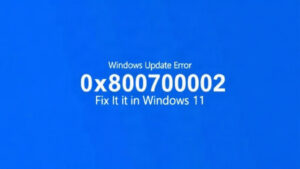
If an update fails, Windows shows a code such as 0x80070002. Search that exact code rather than a general description. Error codes turn a vague problem into a specific answer.
Use Safe Mode for stubborn crashes
If Windows will not start normally, hold Shift while selecting Restart from the power menu. Safe Mode loads a minimal set of drivers, which isolates whether third-party software is the culprit.
Back up before major repairs
Create a restore point via Create a restore point in the Start menu search before installing drivers or editing the registry. A restore point takes seconds and reverses a bad change.
Takeaway: Follow a fixed order: restart, update, use built-in troubleshooters, check error codes, and back up before deep changes. This sequence fixes most issues with minimal risk.
Common Mistakes to Avoid During Windows 11 Troubleshooting
Most failed repairs come from acting too fast. These errors waste time and occasionally damage the system.
Another frequent error is running several fixes at once. If you update a driver, reset the network stack, and clear the update cache in the same session, you cannot tell which change solved the problem or which one introduced a new one. Apply one fix, restart, and test before moving on.
Deleting files from the Windows folder to free space also backfires. Those files may belong to system components or pending updates, and removing them can break features or leave an update half-installed. Use Storage settings and Disk Cleanup instead, which only remove files Windows has marked as safe to delete.
Reinstalling Windows before trying simpler fixes
A clean install erases apps and complicates recovery. Exhaust restart, update, and restore point options first. A reinstall is the last step, never the first.
Ignoring the error code
"That update failed" tells you nothing. The code identifies the cause. Copying the code into a search gives a precise fix instead of guesswork.
Downloading "driver updater" utilities from unknown sites
These tools often install outdated or wrong drivers and sometimes bundle unwanted software. Use Windows Update and the hardware maker’s official site instead.
Disabling security features to make a problem go away
Turning off Defender or the firewall to fix a network issue removes protection. Test the cause in a controlled way, then re-enable security immediately.
Skipping the backup before registry edits
Registry changes can break startup entirely. Set a restore point first, and change one value at a time so you can undo it.
Editing the registry or BIOS without a clear reason
Many guides suggest deep system changes for minor problems. Change the least invasive setting that addresses the symptom.
Scripts from forums that modify system settings or the registry can lock you out of Windows. Use official Microsoft tools unless you understand exactly what the script does.
Takeaway: The costliest mistakes are impatience and guesswork. Note error codes, keep security on, and always make a restore point before deeper changes.
FAQ
How long does Windows 11 troubleshooting usually take?
Most common problems, such as a stalled update or a printer that will not appear, resolve in 15 to 30 minutes with built-in tools. Deep issues like driver conflicts or startup repair can take a few hours. Set aside time before you start.
Do I need to pay for Windows 11 troubleshooting tools?
No. The troubleshooters, Device Manager, System File Checker, and System Restore are all built into Windows 11 at no cost. Paid repair is only reasonable when hardware fails or data recovery is needed.
Should I reinstall Windows 11 if an update keeps failing?
Only after simpler fixes fail. Run the Windows Update troubleshooter, clear the update cache, and check free disk space first. Reinstalling wipes apps and settings, so make it the last option.
Can I troubleshoot a Windows 11 PC that will not boot at all?
Yes. Hold Shift while choosing Restart to enter the recovery environment. From there, open Startup Repair, System Restore, or Safe Mode. If these fail, use installation media to repair the system.
Is it safe to use System Restore during troubleshooting?
Yes, with one caveat. System Restore reverts system files and drivers but leaves personal files intact. Apps installed after the restore point may disappear, so note recent installs before you run it.
Conclusion
Windows 11 troubleshooting rewards a calm, ordered approach. Identify the symptom category, restart and update, run the built-in troubleshooters, and read the error code before guessing. Keep security features on, avoid unknown driver tools, and create a restore point before any deep change. A reinstall belongs at the very end, not the beginning.
Start with one fix today: open Settings > Windows Update and confirm the PC is fully patched. That single habit prevents many of the problems covered here. Log each change you make, and the next issue will take half the time to solve.