
📑 Table of Contents
- Why Windows 11 Updates Matter More Than You Think
- How Windows 11 Updates Actually Work
- Checking For and Installing Updates Manually
- Direct Download Links for Every Windows 11 Version
- When Updates Get Stuck or Fail
- Decoding Windows 11 Update Error Codes
- Controlling Updates: Pause, Block, and Hide
- Preparing Your System Before a Big Update
- Offline and ISO-Based Updates
- Speeding Up Slow Updates
- Rolling Back a Problematic Update
- When an Update Causes Blue Screens or Boot Failures
- Auditing What Has Actually Been Installed
Explore our comprehensive authority series covering direct downloads, error fixes, manual installs, and administrative control:
Official Microsoft Update Catalog direct links for standalone MSU and CAB packages.
Step-by-step instructions to trigger manual update checks via Settings and PowerShell.
How to clear SoftwareDistribution cache, reset update services, and unfreeze downloads.
Pause updates for up to 5 weeks or permanently block problematic buggy driver updates.
Complete breakdown of 25H2 features, AI capabilities, UI improvements, and performance.
Quality updates vs Feature upgrades: installation speeds, risk levels, and disk requirements.
Resolving 0x80070002, 0x800f081f, 0x80248007, and common CBS manifest corruption codes.
Clean up Windows.old, temporary update caches, and system files to gain 20GB+ free space.
How to uninstall quality patches and revert feature updates using WinRE or Settings.
Optimize Delivery Optimization bandwidth, disable throttling, and accelerate installs.
Prevent unexpected restarts during work hours with smart Active Hours and notification rules.
Safe Mode troubleshooting, driver rollback, and startup repair when updates cause BSODs.
Pro and Enterprise configurations: AUOptions, NoAutoRebootWithLoggedOnUsers, and WSUS.
Apply cumulative updates in air-gapped systems using DISM and official offline media.
Audit installed KBs, review driver installation logs, and use PowerShell Get-HotFix.
Why Windows 11 Updates Matter More Than You Think
Patch Tuesday rolls around, your PC nags you to restart, and most people hit “remind me later” without a second thought. That habit is exactly how machines end up unpatched against actively exploited zero-days. Windows 11 updates are not just bug fixes and feature drops — they are the primary defense layer between your data and the internet, and the difference between a machine that runs smoothly for years and one that grinds to a halt after a bad cumulative update.
I have installed, blocked, rolled back, and repaired Windows 11 updates across dozens of systems — from a 2016-era laptop that barely meets hardware requirements to a workstation running the latest 25H2 build. What follows is the complete picture: how updates work, how to control them, how to fix them when they break, and where to find the exact resources you need.
Quick Answer: Windows 11 updates are delivered automatically through Windows Update, but you can check manually via Settings → Windows Update → Check for updates. Most machines install cumulative updates on the second Tuesday of each month (Patch Tuesday). If an update fails, stalls, or breaks your system, you have several recovery paths — troubleshooting tools, manual installs, rollback, and advanced registry or Group Policy controls. This guide covers every one of them, with direct links to deep-dive walkthroughs for each scenario.
How Windows 11 Updates Actually Work
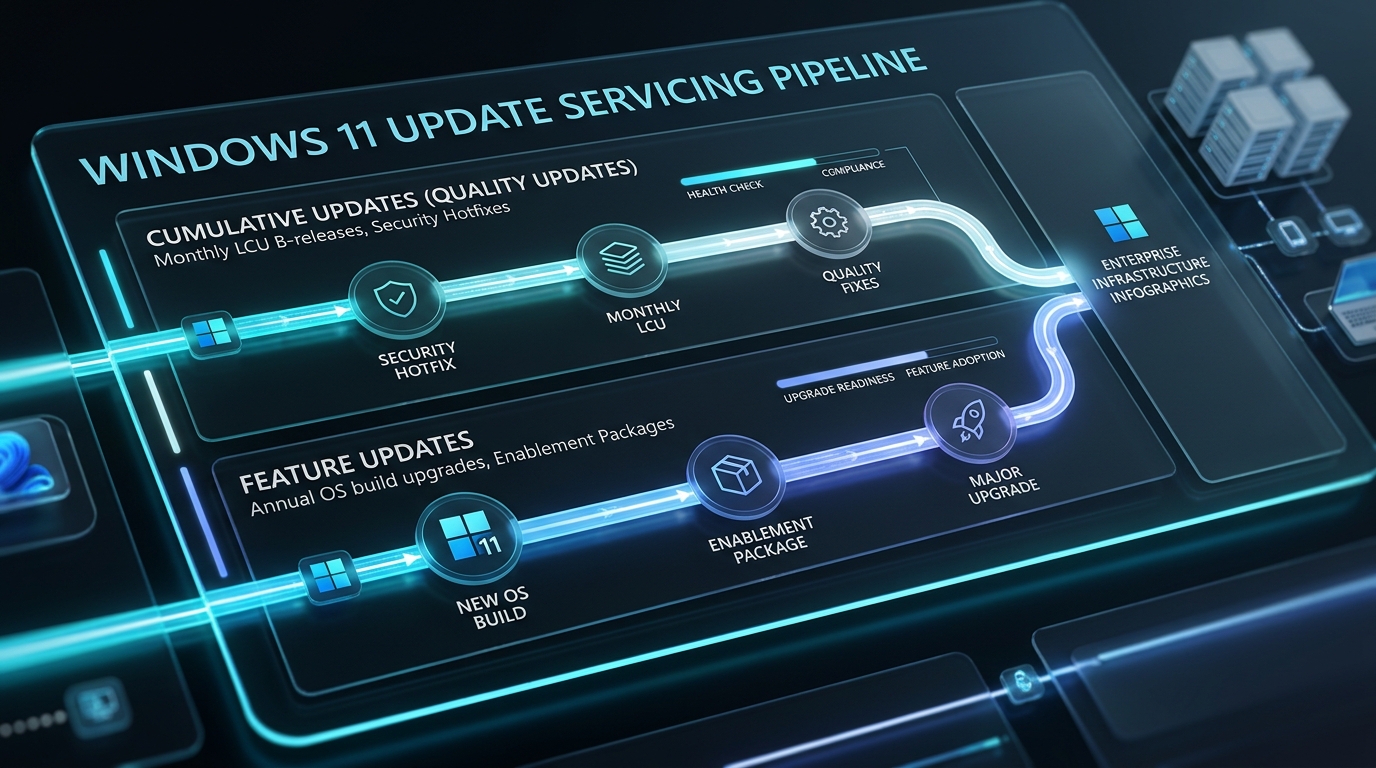
Windows 11 uses a servicing model that most users never see. Behind the friendly “Check for updates” button sits a stack of components: the Windows Update service (wuauserv), the Update Orchestrator, the Delivery Optimization service, and the Windows Update Medic Service. When they work, you get a cumulative update that patches the operating system in place. When one of them fails, you get an error code and a spinning progress bar that never finishes.
There are three broad categories of updates you will encounter:
- Cumulative updates (Quality Updates) — monthly security and reliability patches, typically released on the second Tuesday of the month. These are the ones you should almost never skip.
- Feature updates — annual (sometimes semi-annual) releases that change the build number and add new functionality. Windows 11 24H2 and the Windows 11 25H2 update fall into this category.
- Servicing stack updates and driver updates — smaller, targeted fixes that prepare the update infrastructure or address hardware compatibility.
One nuance that trips people up constantly: an update and an upgradeare not the same thing, even though Windows uses the words interchangeably in the UI. If you have ever wondered why a “small update” took 40 minutes and changed your taskbar layout, that is why. Our breakdown of the difference between a Windows 11 update and an upgrade untangles the terminology in detail.
> The single biggest source of update confusion is Microsoft’s own inconsistent labeling. In Settings, a feature update appears under “Windows Update” with the same visual weight as a 200MB security patch — but it carries vastly different risk. Treat every build-number change as a major operation and every KB-numbered patch as routine maintenance. That mental model alone will save you hours of troubleshooting.
Checking For and Installing Updates Manually
Automatic updates are convenient until they are not. Maybe your organization defers them, maybe the service is stuck, or maybe you just want to confirm you are current before a big project. Manual checking takes about fifteen seconds.
Open Settings → Windows Update and click Check for updates. Windows will query Microsoft’s servers, download anything pending, and offer a restart when ready. If you want more control — or the standard button is misbehaving — our step-by-step guide on how to check for and install Windows 11 updates manually covers the Settings route, the Microsoft Update Catalog, and command-line methods using DISM and the PSWindowsUpdate module.
In my testing, the Microsoft Update Catalog is the most reliable fallback. It lets you download the exact .msu package for your build and architecture, which sidesteps the entire Windows Update pipeline. The trade-off is that you need to know your build number and match the package precisely — installing the wrong architecture’s cumulative update will simply fail with a generic error.
Pro Tip
Press Win + R, type winver, and hit Enter. That dialog tells you your exact Windows 11 version and build number in two seconds. Screenshot it before you start any manual update work — you will need those numbers to pick the correct package from the catalog.
Direct Download Links for Every Windows 11 Version
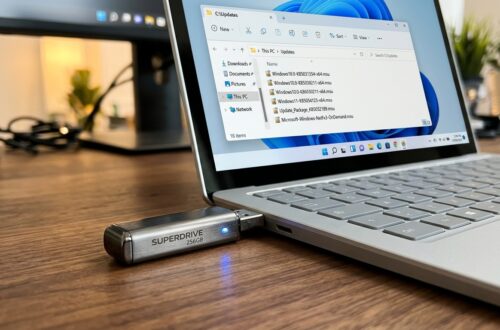
Sometimes the built-in updater is the problem, not the solution. When Windows Update refuses to cooperate, downloading the package yourself is often faster than debugging the service. We maintain a continuously updated index ofdirect download links for every Windows 11 version, including cumulative updates, enablement packages, and full ISOs from Microsoft’s official servers.
Here is the practical distinction: cumulative updates (.msu files) patch an existing installation, while ISOs let you perform an in-place upgrade that preserves your files and apps. The ISO route is heavier — typically 5 to 7GB — but it repairs a surprising amount of update-related corruption along the way, because it effectively reinstalls the operating system components while keeping your data intact.
When Updates Get Stuck or Fail
You know the screen — “Downloading — 0%” for forty-five minutes. Or “Installing updates — 30%” that never moves. Or a restart loop that dumps you back into the same update attempt.
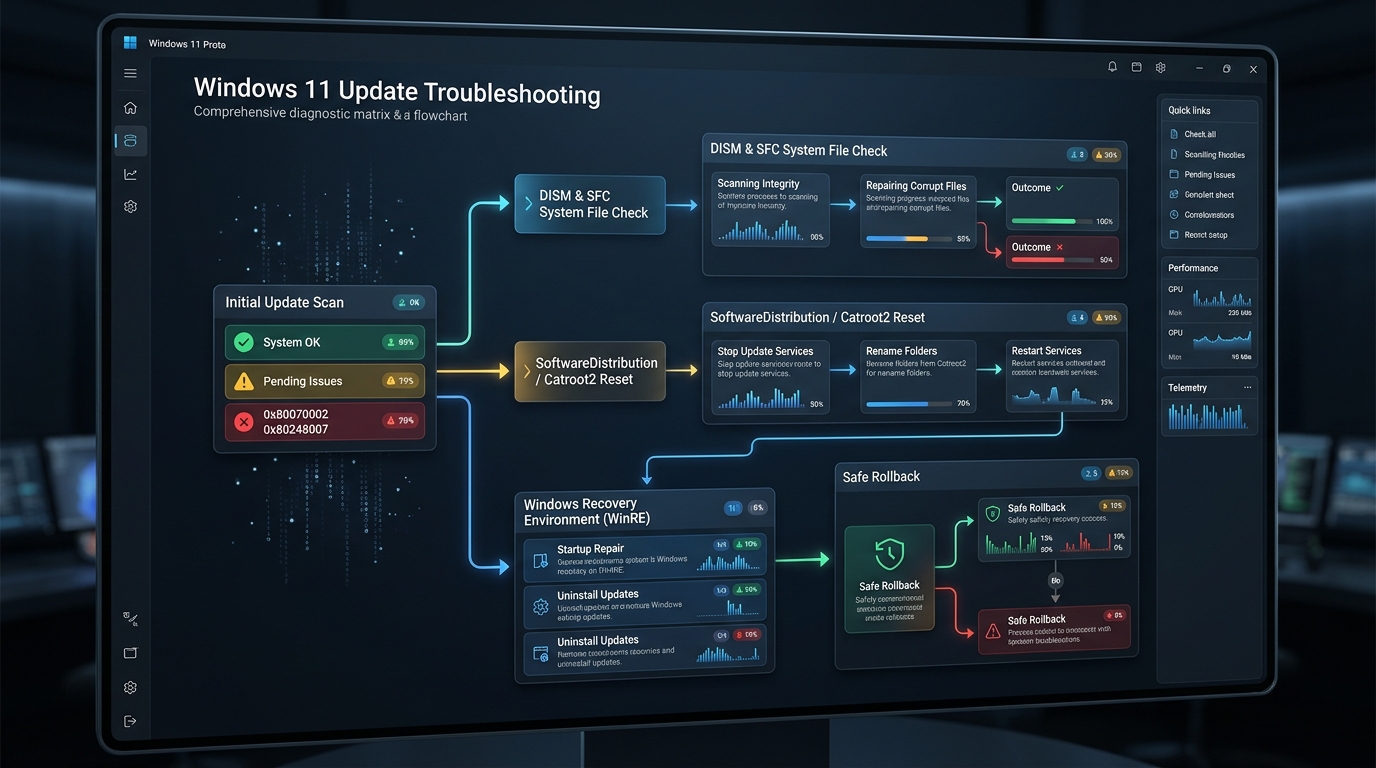
Stuck updates are the most common Windows 11 support issue I see, and they almost always trace back to one of four causes: a corrupted SoftwareDistribution folder, insufficient disk space, a third-party antivirus interfering with the update service, or a pending reboot that the system has not completed. Our full guide to fixing Windows 11 updates that are stuck or failing walks through each cause with concrete remediation steps, including the service-reset sequence that clears the update cache.
The quick version of that reset: stop the Windows Update, BITS, and Cryptographic services, rename the C:\Windows\SoftwareDistribution folder to SoftwareDistribution.old, then restart the services and retry — it sounds crude. It works more often than any other single fix I have tested.
Diagnostic Workflow for a Stuck or Failing Update:
Work through these steps in order — each one rules out a likely cause before you move to the next, so you never waste time on an unnecessary fix.
| Diagnostic Step | Action / Check | Expected Result | Est. Time |
|---|---|---|---|
| 1. Confirm free space | Check C: drive in File Explorer | At least 20GB free for cumulative updates, 30GB+ for feature updates | 1 min |
| 2. Rule out pending reboot | Restart the PC fully (not fast startup) | Update resumes or completes | 5 min |
| 3. Run the troubleshooter | Settings → System → Troubleshoot → Other troubleshooters → Windows Update | Automatic detection and repair of common faults | 5 min |
| 4. Reset update components | Stop services, rename SoftwareDistribution, restart services | Fresh update cache, retry succeeds | 10 min |
| 5. Run DISM and SFC | DISM /Online /Cleanup-Image /RestoreHealth then sfc /scannow |
Corrupted system files repaired | 20–40 min |
| 6. Manual package install | Download the .msu from Microsoft Update Catalog and run it | Update applies outside the Windows Update pipeline | 15 min |
Decoding Windows 11 Update Error Codes
Error codes are the most frustrating part of the update experience because Microsoft rarely explains them in plain language. 0x800f081f means the update cannot find the source files it needs — usually a component store corruption or a missing servicing stack component. 0x8007000e points to insufficient memory. 0x8024402c is a network or proxy failure reaching Microsoft’s servers.
Each code has a distinct root cause and a distinct fix. Our dedicated resource on fixing Windows 11 update error codes like 0x800f081f breaks down the twenty most common codes with targeted solutions rather than generic “run the troubleshooter” advice. If you only remember one thing: 0x800f081f almost always requires DISM with a specified source, not just the standard RestoreHealth command.
> Never download “update fixers” or “Windows repair tools” from third-party sites promising to resolve error codes. Most are adware at best and malware at worst. Every legitimate fix uses built-in Windows tools — DISM, SFC, the Settings troubleshooter, or the official Microsoft Update Catalog.
Controlling Updates: Pause, Block, and Hide
Full automation is fine until an update lands at the worst possible moment — mid-presentation, mid-render, mid-deadline. Windows 11 gives you more control than most people realize, though Microsoft has tightened the defaults since Windows 10.
You can pause updates for up to five weeks through Settings, set active hours to prevent restarts during your working day, and defer feature updates for up to 365 days on Pro and Enterprise editions. For more surgical control — blocking a specific problematic driver or hiding a single cumulative update — our guide to pausing, blocking, and hiding specific Windows 11 updates covers the wushowhide tool and the metered connection workaround.
If you need permanent, policy-level control, the registry and Group Policy methods for advanced update controlgo considerably deeper. On Windows 11 Pro, the Group Policy editor exposes deferral windows, driver update exclusion, and the ability to point Windows Update at a WSUS server. On Home edition, you are limited to registry edits — which work, but require care.
Active Hours and Restart Behavior
Active hours tell Windows when notto restart for updates. The default is 8 AM to 5 PM, which is useless if you work evenings. Set it to match your real schedule. Windows 11 can also detect activity and adjust automatically, but I have found the manual setting more reliable — especially on machines that run long background tasks overnight.
For a full walkthrough of restart scheduling, notification suppression, and the “notify to schedule restart” option, see our explainer on Windows 11 update settings and restart control.
- Pausing updates protects you during high-stakes work periods
- Active hours prevent surprise restarts without disabling security patches entirely
- Deferral policies give IT admins predictable rollout windows
- Long pauses leave you exposed to known vulnerabilities
- Aggressive blocking can cause update pileups that fail later
- Home edition users have fewer native controls than Pro users
Preparing Your System Before a Big Update
Feature updates are where disk space becomes a hard blocker rather than a mild inconvenience. Windows 11 24H2 and 25H2 both want roughly 20 to 30GB of free space during installation, and the setup process creates a Windows.old folder afterward that can consume another 10 to 20GB until it is cleaned up.
Before any major update, run Disk Cleanup (or Storage Sense), clear the Downloads folder, and check for large hibernation and page files. Our guide on freeing up disk space before a Windows 11 update covers the specific folders worth clearing and the safe way to remove the previous installation after a successful upgrade.
> Do not delete the Windows.old folder immediately after a feature update. It is your only built-in path to roll back if the new build causes driver failures or application incompatibilities. Windows removes it automatically after ten days — wait it out unless you are certain the update is stable.
Offline and ISO-Based Updates
Not every machine has reliable internet. Kiosks, air-gapped systems, and machines on metered connections all need a way to update without pulling gigabytes through Windows Update. The offline installer and ISO method for updating Windows 11 without internet covers the full workflow: downloading the correct ISO on a connected machine, creating installation media, and running an in-place upgrade that preserves files and applications.
This method doubles as a repair tool. If Windows Update is fundamentally broken — services missing, registry keys corrupted, component store unrecoverable — an in-place upgrade from ISO reinstalls the OS while keeping your data. I have used it to rescue machines that failed three consecutive cumulative updates, and it succeeded where every command-line repair had failed.
Speeding Up Slow Updates
Some updates genuinely take a long time because they are large. Others take a long time because something is throttling them. The difference matters.
Delivery Optimization — Windows 11’s peer-to-peer update distribution system — can actually slow down updates on networks with many devices, because it prioritizes local sharing over direct download. Disabling it or limiting it to your local network often cuts update times significantly. Our guide on why Windows 11 updates take so long and how to speed them up covers Delivery Optimization tuning, network settings, and the storage and CPU factors that affect installation speed.
One observation from repeated testing: updates install dramatically faster on an SSD than a mechanical drive, and the gap is widest during the post-restart configuration phase. If you are still running Windows 11 on a spinning disk, that alone explains most of your update downtime.
Rolling Back a Problematic Update
Sometimes an update installs cleanly and then breaks something — a printer driver, a VPN client, a game anti-cheat system. You have a limited window to undo it.
Windows 11 keeps the previous build available for ten days after a feature update, accessible through Settings → System → Recovery → Go back. Cumulative quality updates can be uninstalled through Windows Update → Update history → Uninstall updates. Our guide on rolling back and reverting a Windows 11 update walks through both paths, plus what to do when the rollback option has already expired.
KEY TAKEAWAY
The ten-day rollback window is a hard deadline. If a feature update causes problems, decide within that window. After it closes, your only options are an in-place repair upgrade from ISO or a full reset — both considerably more disruptive than a simple rollback.
When an Update Causes Blue Screens or Boot Failures
This is the nightmare scenario: the update installs, the machine restarts, and it never reaches the desktop. Blue screens, boot loops, or a black screen with a cursor.
Windows 11 has built-in recovery for this — three failed boot attempts trigger Automatic Repair, which offers System Restore, Startup Repair, and Safe Mode. From Safe Mode you can uninstall the offending update or roll back a driver. Our guide to fixing Windows 11 updates that cause blue screens or boot failures covers the full recovery sequence, including how to reach the advanced startup menu when Windows will not boot at all.
Most post-update blue screens trace back to third-party drivers, not the update itself. Graphics drivers, storage controllers, and antivirus filter drivers are the usual suspects. If you can reach Safe Mode, uninstalling the most recently updated driver — usually the GPU — resolves the majority of cases before you ever need to consider a rollback.
Auditing What Has Actually Been Installed
Knowing your update history matters for troubleshooting, compliance, and simple peace of mind. Windows 11 logs every installed update with its KB number, install date, and success status under Settings → Windows Update → Update history.
That view is convenient but incomplete — it truncates older