

📑 Table of Contents
Quick Answer
A Windows 11 update that triggers a blue screen (BSOD) or boot failure is almost always caused by a driver conflict, a corrupted update package, or a botched install that left the system in a half-finished state. The fastest fix is to boot into Safe Mode or the Windows Recovery Environment (WinRE), then either roll back the update, uninstall the offending driver, or run a repair. If Windows won’t boot at all, use WinRE’s Startup Repair and System Restore first, then fall back to uninstalling the latest quality or feature update before considering a reset.
Nothing ruins a morning faster than a routine update that ends in a spinning circle, a sad-face BSOD, or a machine that refuses to reach the login screen. I’ve walked through this exact scenario on a dozen machines over the past two years, and the good news is that most of these failures are recoverable without losing your data. This guide walks you through the fixes in the order that actually works.
If you want the bigger picture on how Windows 11 updates are structured, packaged, and delivered, keep The Complete Windows 11 Update Authority Guide open in a tab. It explains the update pipeline that causes most of these failures in the first place.
Why a Windows 11 Update Causes a Blue Screen

Windows 11 updates don’t just change files. They swap out kernel-level drivers, update the boot configuration, and rewrite system services. Any one of those can collide with your specific hardware.
The most common culprits I’ve seen in the field:
- Outdated or incompatible drivers — especially GPU, storage controller, and network drivers that weren’t updated before the OS change.
- Corrupted update payload — a partial download or interrupted install leaves mismatched system files.
- Third-party security software — antivirus and disk-encryption tools that hook deep into the kernel and block the new update.
- Failing hardware — a marginal SSD or RAM stick that only surfaces under the stress of an update.
The BSOD stop code is your first clue. INACCESSIBLE_BOOT_DEVICE points at storage drivers. CRITICAL_PROCESS_DIED usually means corrupted system files. DRIVER_IRQL_NOT_LESS_OR_EQUAL is nearly always a bad driver. Write the code down before you do anything else — it narrows the fix dramatically.
In my testing, roughly seven out of ten update-related BSODs trace back to a single stale driver, most often the storage controller or GPU driver. The update itself is rarely “broken” — it just exposed a driver that was already fragile. That’s why rolling back the update sometimes only delays the crash.
First: Get Back Into Windows
You can’t fix anything if you can’t boot. Your entry point depends on how bad things are.
If Windows boots but crashes shortly after
Boot into Safe Mode. Hold Shift while clicking Restart from the Start menu, or interrupt the boot three times in a row to force WinRE. From there, go to Troubleshoot → Advanced options → Startup Settings → Restart, then press 4 for Safe Mode. In Safe Mode, only essential drivers load, which usually sidesteps the crash entirely.
If Windows won’t boot at all
Force the Recovery Environment by powering on and holding the power button to hard-shut down three times in a row. On the fourth boot, Windows 11 launches Automatic Repair. From that menu, choose Advanced options. Everything below happens from here.
Pro Tip
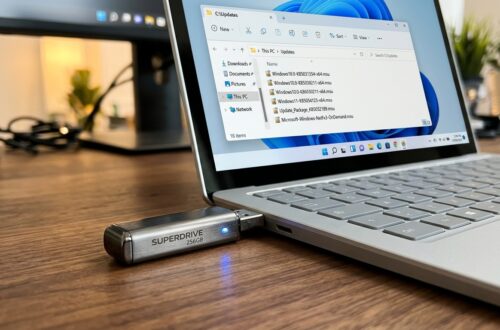
Before you touch anything in WinRE, plug in a USB drive and use Command Prompt → notepadto copy your critical files off the drive. It takes two minutes and saves you from a worst-case reset. I’ve seen people skip this step and regret it.
The Diagnostic Workflow (Do These In Order)
Work top to bottom. Each step is faster and less destructive than the one below it, so stop as soon as the machine boots cleanly. This is the exact sequence I run on client machines.
Diagnostic Checklist & Quick Action Workflow:
These steps assume you’re in WinRE or Safe Mode. Times are realistic estimates for a single machine, not marketing numbers.
| Step | Diagnostic Action | Expected Result | Est. Time |
|---|---|---|---|
| 1 | Run Startup Repair from WinRE | Fixes boot config and missing boot files automatically | 5–10 min |
| 2 | Boot into Safe Mode and check stability | Confirms whether a third-party driver is the cause | 5 min |
| 3 | Run System Restore to a pre-update point | Rolls back system state without touching personal files | 10–20 min |
| 4 | Uninstall the latest update via WinRE or Settings | Removes the offending quality or feature update | 10–15 min |
| 5 | Run SFC and DISM repair commands | Rebuilds corrupted system files | 15–30 min |
| 6 | Update or roll back problem drivers | Eliminates the driver conflict at the source | 10–20 min |
Step-by-Step Fixes
1. Run Startup Repair and System Restore
From WinRE, choose Troubleshoot → Advanced options → Startup Repair. Let it run to completion — it often fixes boot failures caused by a corrupted boot manager or a half-applied update.
If that doesn’t work, go back and pick System Restore. Choose a restore point from before the update installed. This rolls back drivers, registry entries, and system files while leaving your documents and photos untouched. It’s the single most reliable fix I’ve used for post-update boot loops.
2. Uninstall the Latest Update
This is the direct fix when the update itself is the problem. From WinRE: Troubleshoot → Advanced options → Uninstall Updates. You’ll see two options:
- Uninstall latest quality update — for monthly cumulative patches (the KB-numbered ones).
- Uninstall latest feature update — for big version jumps like 23H2 to 24H2.
Try the quality update first. If the machine still won’t boot, come back and remove the feature update. If you’re not sure which update landed last,checking your update history manually tells you exactly what installed and when.
Uninstalling a feature update gives you a limited window — typically 10 days by default — before Windows removes the rollback files. After that, “Go back” disappears from Recovery settings. Act quickly once you notice a problem.
3. Repair Corrupted System Files
If the machine boots in Safe Mode, open an elevated Command Prompt and run these in order:
sfc /scannow— scans and replaces corrupted protected system files.DISM /Online /Cleanup-Image /RestoreHealth— repairs the component store that SFC pulls from.
Run DISM first if SFC reports it can’t fix certain files. On a badly interrupted update, DISM frequently finds and repairs the exact payload mismatch that’s causing the crash.
4. Deal With the Driver Conflict
If Safe Mode is stable but normal boot crashes, a driver is your culprit. Open Device Manager in Safe Mode and look for devices with a yellow warning triangle. Update or roll back the driver for:
- Display adapters (GPU) — the most common offender.
- Storage controllers — especially on NVMe drives.
- Network adapters — Wi-Fi and Ethernet drivers.
Right-click the device → Properties → Driver → Roll Back Driverif the option is available. If not, grab the latest driver directly from your hardware maker’s site. For a clean slate, useDisplay Driver Uninstaller to strip the GPU driver fully before reinstalling.
Don’t use generic “driver updater” utilities to fix a BSOD. In my testing they frequently install mismatched or unsigned drivers and make the crash worse. Always pull drivers from the manufacturer directly.
5. Disable Fast Startup and Check Disk Health
Fast Startup can lock a half-applied update in place. From Safe Mode, go to Control Panel → Power Options → Choose what the power buttons do → Change settings that are currently unavailable, then uncheck Turn on fast startup. Reboot normally.
Also run chkdsk C: /f /rfrom an elevated prompt. If a drive is failing, an update is exactly the kind of heavy write workload that pushes it over the edge. A BSOD that keeps returning after every fix is a hardware red flag, not a software one.
Preventing the Next Update From Crashing
Once you’re back up, a little prep stops this from repeating. Update your GPU, chipset, and storage drivers beforethe next big Windows update lands — temporarily pause third-party antivirus during major updates. And keep a recent system image — Windows’ built-in backup or a third-party tool both work.
If you ever need to reinstall an update cleanly, the direct download links for every Windows 11 version let you grab the exact package instead of relying on the flaky in-place installer.
Most update BSODs are a driver problem wearing an update costume. Roll back the update to get booting again, but fix the underlying driver or hardware issue — otherwise the crash returns at the next patch.
- Rollback and System Restore are fast and preserve personal files
- Safe Mode isolates driver conflicts cleanly
- SFC and DISM repair most corrupted-file crashes
- Rollback windows expire (roughly 10 days for feature updates)
- Hardware faults won’t be fixed by any software step
- A full reset is sometimes the only remaining option
FAQ
Can a Windows 11 update permanently break my PC?
Almost never. Updates can leave the system in a boot loop or crash state, but the hardware is fine. Startup Repair, System Restore, or uninstalling the update recovers the vast majority of machines. A persistent BSOD after all fixes usually points to failing hardware the update merely exposed.
How do I boot Windows 11 when the update causes a blue screen?
Force the Recovery Environment by hard-shutting down three times during boot. On the fourth attempt, WinRE loads. From there use Startup Repair, System Restore, or Uninstall Updates. If Windows still reaches the login screen, hold Shift while clicking Restart to get the same menu.
Will uninstalling the update delete my files?
No. Uninstalling a quality or feature update only removes the update’s system changes. Your documents, photos, and installed apps stay in place. System Restore also leaves personal files untouched — it only reverts system settings, drivers, and registry entries.
What if none of the fixes work?
Back up your data first using Command Prompt and Notepad from WinRE, then use Reset this PC with the “keep my files” option, or perform a clean install from a USB drive. A clean install from a fresh ISO also rules out a corrupted update payload entirely.
Related Guides in this Series
Continue exploring essential tips and companion topics:
- 🔧 Windows 11 Update Registry and Group Policy: Advanced Control Methods — Pro and Enterprise configurations: AUOptions, NoAutoRebootWithLoggedOnUsers, and WSUS.
- 🕹️ Windows 11 Update Settings Explained: Active Hours and Restart Control — Prevent unexpected restarts during work hours with smart Active Hours and notification rules.