
📑 Table of Contents
- Quick Answer
- Where Microsoft Actually Publishes Windows 11 Updates
- How to Find the Right Update for Your Exact Build
- Direct Download Workflow: Catalog to Installed
- Feature Upgrades: Installation Assistant vs. Media Creation Tool vs. ISO
- When to Download Manually (and When Not To)
- Frequently Asked Questions
Quick Answer
You can download Windows 11 updates directly from Microsoft without waiting for Windows Update to offer them. The fastest route is the official Microsoft Update Catalog, where cumulative updates (KB packages) are published as standalone .msu files for both x64 and ARM64 devices. For feature upgrades, use the Windows 11 Installation Assistant or the Media Creation Tool. Always match the exact build number, architecture, and edition to your PC before installing anything.
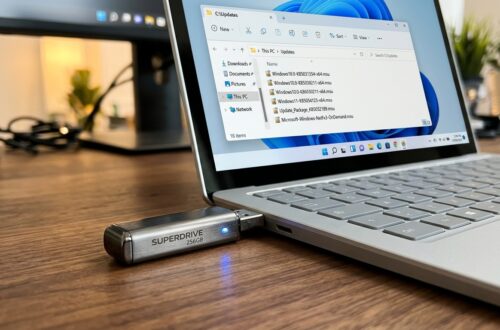
Windows Update is convenient until it isn’t. Maybe a cumulative update keeps failing at 87%. Maybe you’re rebuilding a machine and don’t want to wait for the slow rollout queue. Or maybe you manage a small fleet of PCs and need the .msu files on a USB stick. Whatever the reason, direct download links exist — and they’re all hosted by Microsoft, which means no sketchy third-party mirrors and no bundled junkware.
This guide maps out every legitimate source for a windows 11 update download, explains which one to use for which scenario, and covers the gotchas I’ve run into after installing hundreds of these packages across test benches and client machines.
Important Note
Only download Windows 11 updates from Microsoft-owned domains: catalog.update.microsoft.com, microsoft.com/software-download/windows11, and support.microsoft.com. Any other site offering “direct” KB links is repackaging Microsoft’s files at best — and injecting something at worst.
Where Microsoft Actually Publishes Windows 11 Updates
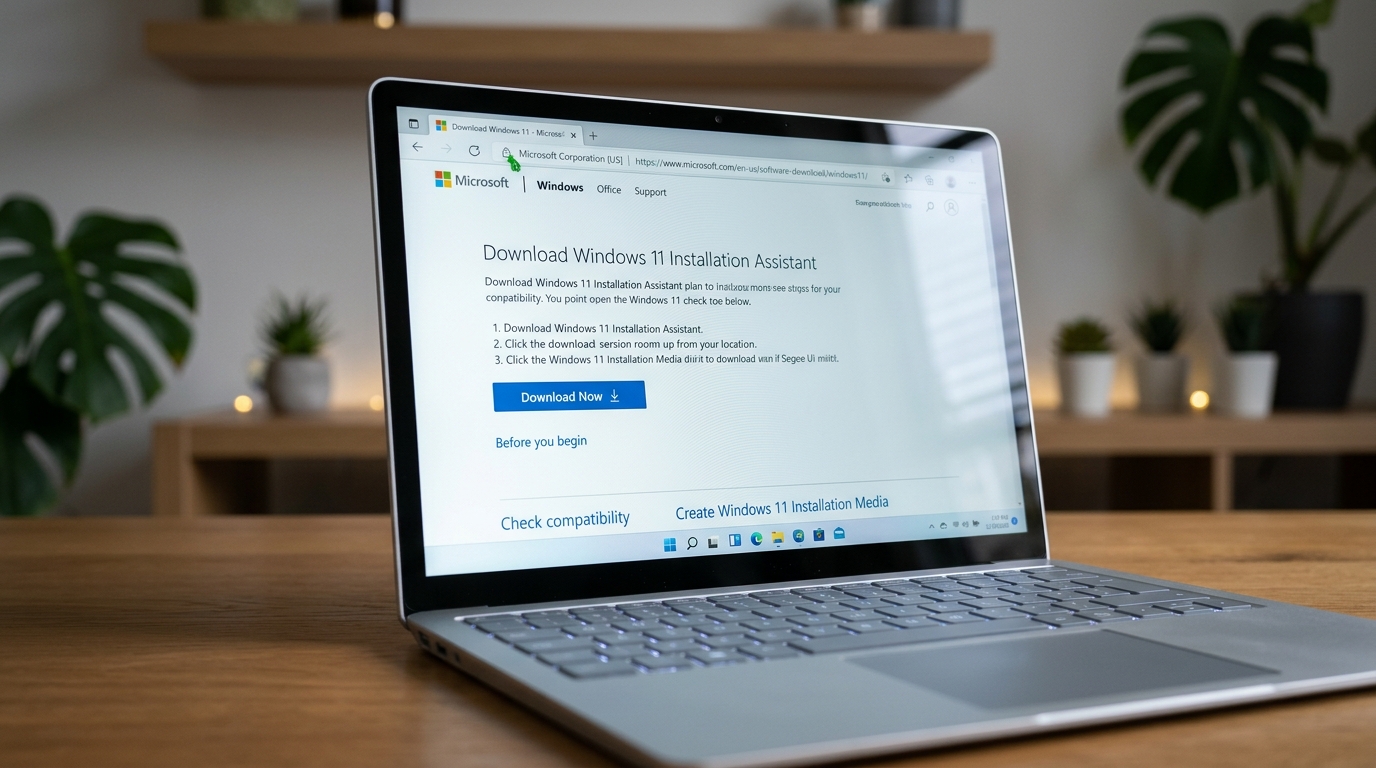
There are three official distribution channels, and each serves a different purpose. Confusing them is the most common mistake I see.
1. Microsoft Update Catalog (Cumulative & Security Updates)
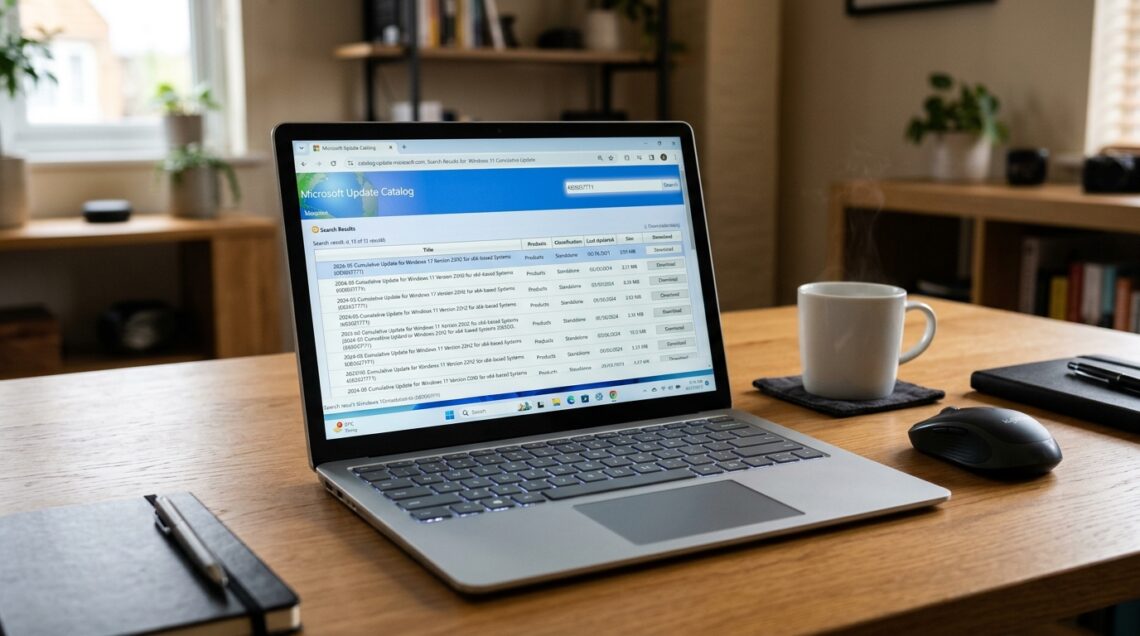
The Update Catalog is the workhorse. Every Patch Tuesday cumulative update for Windows 11 — the ones labeled “2025-xx Cumulative Update for Windows 11 Version 24H2 for x64-based Systems (KB50xxxxx)” — lands here within hours of release. Files are .msu packages — download, double-click, and Windows handles the rest. This is the channel to use when Windows Update itself is misbehaving.
2. Windows 11 Download Page (Feature Upgrades & ISO Files)
For moving from, say, 23H2 to 24H2, or for a clean install, head to the official Windows 11 download page. You’ll find the Installation Assistant (in-place upgrade, keeps files and apps), the Media Creation Tool (builds bootable USB or ISO), and direct ISO downloads. Note that ISO links rotate every 24 hours — Microsoft generates them per session, so a link copied today may expire tomorrow.
3. Windows Release Health & KB Support Pages
Every KB article on support.microsoft.com includes a “How to get this update” section with the Catalog link, the release date, and the supersedence chain. This is where you verify you’re grabbing the newest package rather than one that’s already been replaced.
If you want the full lifecycle picture — servicing timelines, end-of-support dates, and how Microsoft stages rollouts — the Complete Windows 11 Update Authority Guide is the place to start before drilling into individual downloads.
How to Find the Right Update for Your Exact Build
Downloading the wrong package wastes time and can throw a “this update is not applicable to your computer” error. Before you touch the Catalog, confirm three things.
Step one: press Win + R, type winver, and hit Enter. The dialog shows your version (e.g., 24H2) and OS build (e.g., 26100.2033). Write both down.
Step two:check your architecture. Settings → System → About shows “System type.” Almost everyone is x64, but Snapdragon X laptops and some Surface devices are ARM64, and those need different packages. Installing an x64 cumulative update on ARM64 simply fails.
Step three:search the Catalog by KB number, not by title. Titles are long and easy to misread; KB numbers are unique. Sort results by “Last Updated” descending so the freshest package sits at the top.
Pro Tip
On the Catalog results page, click the “Last Updated” column header twice to sort newest-first. Microsoft sometimes leaves older superseded packages listed for months, and grabbing one of those is the single most common cause of a failed manual install.
One nuance worth knowing: cumulative updates are cumulative. You don’t need every KB released since your last update — the latest one contains all prior fixes for that build branch. In practice, I’ve installed a single current cumulative update on a machine that was six months behind, and it caught up completely in one pass.
Direct Download Workflow: Catalog to Installed
Here’s the exact sequence I follow, refined over years of bench testing. It takes about ten minutes of active time for a typical cumulative update.
Diagnostic Checklist & Quick Action Workflow:
Use this table when you’re pulling a cumulative update manually and want a clean, verifiable install with no surprises.
| Step | Diagnostic Action | Expected Result | Est. Time |
|---|---|---|---|
| 1 | Run winver and note version + build |
Exact build string confirmed | 30 sec |
| 2 | Search Catalog by KB number, sort by Last Updated | Correct .msu package located | 2 min |
| 3 | Download the x64 or ARM64 .msu matching your device | File saved locally, size matches listing | 1–5 min |
| 4 | Verify package signature (right-click → Properties → Digital Signatures) | Signed by Microsoft Corporation | 30 sec |
| 5 | Run DISM /Online /Cleanup-Image /CheckHealth |
Component store reports no corruption | 1 min |
| 6 | Install the .msu by double-clicking | Windows Update Standalone Installer completes | 5–15 min |
| 7 | Reboot and re-run winver |
Build number incremented | 3 min |
That signature check at step four is not paranoia. It’s a two-click habit that instantly confirms the file is genuinely from Microsoft, and it’s saved me from a corrupted download more than once on flaky hotel Wi-Fi.
Feature Upgrades: Installation Assistant vs. Media Creation Tool vs. ISO
Cumulative updates are one thing. Moving to a new Windows 11 version is another. Three official paths exist, and they’re not interchangeable.
- Installation Assistant: fastest in-place upgrade, keeps files and apps, one click
- Media Creation Tool: builds USB or ISO, reusable across multiple PCs
- Direct ISO: full control, works offline, ideal for VMs and clean installs
- Installation Assistant: no offline use, requires stable internet throughout
- Media Creation Tool: downloads a full image even for one machine
- Direct ISO: largest download, and links expire after 24 hours
In my testing, the Installation Assistant is the right call for a single PC that’s already healthy. It handled a 23H2 → 24H2 upgrade on a five-year-old ThinkPad in roughly 35 minutes with zero intervention. The Media Creation Tool earns its keep when you’re upgrading several machines — build the USB once, run it everywhere.
The ISO route is what I reach for on virtual machines and clean installs, because it sidesteps the compatibility checks that sometimes block in-place upgrades on older hardware.
Warning
Don’t run the Installation Assistant on a machine that’s already showing update errors, corrupted system files, or failing cumulative updates. Fix the underlying problem first — the Windows 11 update stuck or failing fixes guide walks through the repair sequence. Upgrading on top of a broken component store usually makes things worse.
When to Download Manually (and When Not To)
Manual downloads solve specific problems. They’re not a universal upgrade path, and treating them as one creates unnecessary work.
Download manually when: Windows Update fails repeatedly on the same KB, you’re rebuilding a machine offline, you need to patch an isolated system, or you’re troubleshooting a specific build and need to control exactly which package lands.
Stick with Windows Update when:everything is working. Automatic delivery handles supersedence, driver coordination, and reboot scheduling that manual installs don’t. Microsoft’s rollout staging also exists for a reason — early packages occasionally get pulled or revised, and Windows Update picks up the corrected version automatically.
If you’d rather diagnose the built-in updater than bypass it, the companion guide on checking for and installing Windows 11 updates manually covers the Settings-side workflow, including the “Check for updates” button behavior most people never look at closely.
The Update Catalog is also the fastest way to see what’s actually shipping. Rollout staging means Windows Update may not offer a cumulative update to your device for days or weeks, but the .msu is on the Catalog the moment Microsoft publishes it. If you’re tracking patch status for a team, the Catalog is your ground truth — not the Windows Update UI.
Frequently Asked Questions
Are Microsoft Update Catalog downloads safe?
Yes. The Catalog is operated by Microsoft and every package carries a valid Microsoft digital signature. Verify it via right-click → Properties → Digital Signatures before installing, and you’ve confirmed both authenticity and integrity.
Can I install a cumulative update if Windows Update already failed on it?
Often, yes. Manual .msu installs bypass several of the Windows Update client’s failure points. Run DISM /Online /Cleanup-Image /RestoreHealth first, then install the package directly. If it still fails, the component store or the update client itself needs repair.
Why does the Windows 11 ISO download link stop working?
Microsoft generates ISO links per session with a 24-hour validity window. If a link fails, return to the official download page and request a fresh one — the files haven’t changed, only the signed URL.
Do I need every KB released since my last update?
No. Cumulative updates roll up all previous fixes for that build branch. Installing the newest cumulative update for your version brings you fully current, which is why superseded packages should be skipped entirely.
Key Takeaway
Use the Microsoft Update Catalog for cumulative and security updates, the official download page for feature upgrades and ISOs, and Windows Update itself whenever it’s healthy. Match build number and architecture every single time, and verify the Microsoft signature before you install.
Related Guides in this Series
Continue exploring essential tips and companion topics:
- ⚙️ How to Check for and Install Windows 11 Updates Manually — Step-by-step instructions to trigger manual update checks via Settings and PowerShell.
- 📊 Windows 11 Update History: How to Review and Audit Installed Updates — Audit installed KBs, review driver installation logs, and use PowerShell Get-HotFix.