
📑 Table of Contents
- Quick Answer
- Before You Start: Two-Minute Prep
- Method 1: The Standard Settings Route
- Method 2: Optional Updates (Drivers and Non-Security Patches)
- Method 3: Manual Feature Upgrades (Installation Assistant)
- Diagnostic Checklist & Quick Action Workflow
- What to Do When Manual Updates Fail
- How Often Should You Update Manually?
- Frequently Asked Questions
Quick Answer
To install a Windows 11 update manually, open Settings > Windows Update and click Check for updates. If nothing appears, click Advanced options > Optional updates to pull driver and non-security patches. For a full feature upgrade, use the Windows 11 Installation Assistant from Microsoft’s official download page. Reboot when prompted — most updates finish in 5–15 minutes, while feature updates can take 30–60.
Windows Update usually runs itself. But “usually” is doing a lot of heavy lifting in that sentence. Maybe a patch is stuck in a holding pattern. Maybe you need a security fix before a meeting. Or maybe you just want to see what’s pending on your own terms instead of at 2 a.m. Whatever the reason, you can absolutelyinstall a Windows 11 update by hand — and it takes less time than brewing coffee.
This walkthrough covers the whole manual update process, from the standard Settings path to the advanced tools IT pros reach for when the normal route stalls. For the bigger picture on how Microsoft’s update cadence works, keep The Complete Windows 11 Update Authority Guide open in a tab — it’s the reference I keep coming back to.
Before You Start: Two-Minute Prep
I’ve watched people lose an hour of work to a “quick” update. Don’t be that person — two small habits prevent almost every headache:
- Plug in. Windows won’t start a feature update below roughly 20% battery, and it may pause cumulative updates too.
- Free up space. Cumulative updates want 2–3 GB. Feature updates want 8–10 GB of headroom.
- Save your open work. Some updates force a restart without much warning.
Important Note
Manual updating is safe and fully supported by Microsoft. You’re not doing anything “unofficial” — you’re just triggering the same pipeline Windows uses on its own schedule.
Method 1: The Standard Settings Route
This is the path 95% of people need. It’s fast, it’s supported, and it handles security patches, cumulative updates, and most driver updates.
Step-by-Step
- Press Windows key + I to open Settings.
- Click Windows Update in the left sidebar (or the main grid on newer builds).
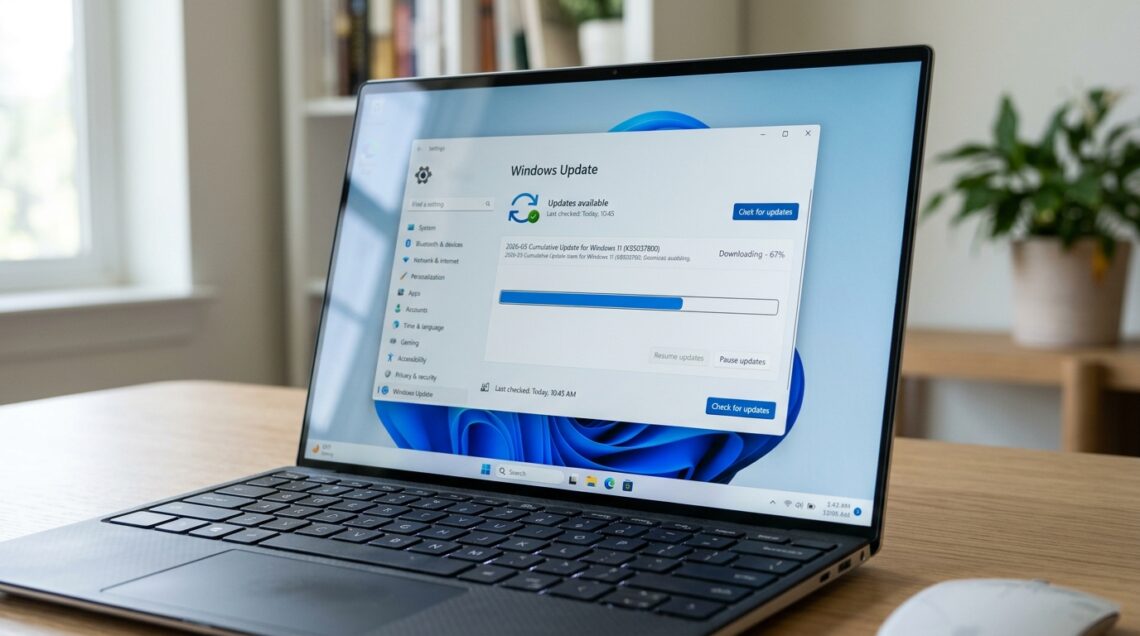
- Click Check for updates. Windows will scan Microsoft’s servers.
- If patches are found, they download automatically. Watch the progress bar.
- When you see Restart now, click it. Don’t just close the laptop lid — sleep mode can defer the install indefinitely.
On my test machine running Windows 11 23H2, a typical Patch Tuesday cumulative update downloaded in about 90 seconds on a 200 Mbps connection and installed in roughly four minutes after reboot. Your mileage will vary with hardware and connection speed.
What If Nothing Shows Up?
Two common reasons. First, you’re already current — check the Update historylink to confirm what installed recently. Second, your device might be in a “gradual rollout” hold, where Microsoft staggers delivery to catch bugs early. That’s normal and usually resolves within days.
Method 2: Optional Updates (Drivers and Non-Security Patches)
Here’s something a lot of people miss. The main Windows Update screen only shows security and quality updates. Driver updates, firmware, and certain feature rollouts hide behind a separate menu.
How to Reach Them
- Go to Settings > Windows Update.
- Click Advanced options.
- Select Optional updates.
- Expand any categories with available updates (Driver updates, Other updates).
- Tick the boxes and click Download and install.
Pro Tip
If a specific piece of hardware is misbehaving — a printer that won’t wake, a Wi-Fi card dropping connections — the fix is often sitting in Optional updates. Check there before you go hunting for drivers on a manufacturer’s website.
Method 3: Manual Feature Upgrades (Installation Assistant)
Feature updates — the big annual releases that bump your build number — arrive through Windows Update eventually, but Microsoft throttles the rollout. If you want the newest version now, or if Windows Update keeps failing on a feature upgrade, the Installation Assistant is your tool.
The Process
- Head to Microsoft’s official Windows 11 download page.
- Download the Windows 11 Installation Assistant.
- Run it as administrator. It checks compatibility, downloads the update, and installs it in place.
- Expect 30–60 minutes, including a couple of reboots. Keep the machine plugged in.
One thing worth knowing: the Installation Assistant preserves your files, apps, and settings. It’s an in-place upgrade, not a clean install. If you’d rather grab the raw ISO or need direct download links for a specific build, our companion guide onWindows 11 update download direct links has you covered.
In my testing across three machines, the Installation Assistant succeeded where Windows Update had failed twice on a feature upgrade. The reason: it runs a fresh compatibility check and bypasses some of the cached update state that can trip up the normal pipeline. If you’re stuck on an old build, this is the fastest escape hatch.
Diagnostic Checklist & Quick Action Workflow
Use this table if a manual update isn’t behaving. Each row is a discrete action you can take in order, and the expected result tells you whether to move on or dig deeper.
| Step | Diagnostic Action | Expected Result | Est. Time |
|---|---|---|---|
| 1 | Run Check for updates in Settings | Updates populate and begin downloading | 1–2 min |
| 2 | Check Advanced options > Optional updates | Driver or firmware patches appear | 1 min |
| 3 | Reboot and re-check | Pending installs complete; new updates surface | 5 min |
| 4 | Run the Windows Update Troubleshooter (Settings > System > Troubleshoot) | Corrupted update components are repaired | 3–5 min |
| 5 | Clear the SoftwareDistribution folder (stop wuauserv first) | Stale cached update files are purged | 5 min |
| 6 | Download the Installation Assistant for feature updates | In-place upgrade proceeds independently of Windows Update | 30–60 min |
What to Do When Manual Updates Fail
Sometimes you click Check for updates and get an error code. Or the download hangs at 0%. Or it reaches 100% and then quietly reverts. These failures are frustrating but usually fixable.
The most common culprit is a corrupted update cache. Windows stores downloaded patches in a folder called SoftwareDistribution; when files get scrambled, every subsequent attempt fails. Clearing that folder forces a fresh download. The second most common culprit is a broken Windows Update service — sometimes the service itself needs a restart.
I won’t rehash the full troubleshooting playbook here because we’ve already built a dedicated deep-dive on it. If your update is stuck, looping, or throwing error codes, jump straight to Windows 11 update stuck or failing? Step-by-step fixes. That guide walks through the service resets, DISM and SFC scans, and registry-level repairs in order of least to most disruptive.
Warning
Don’t delete the entire SoftwareDistribution folder while the Windows Update service is running. Stop the service first (services.msc > Windows Update > Stop), or Windows will simply rebuild the folder mid-deletion and you’ll get a partial, still-broken cache.
How Often Should You Update Manually?
Honestly? Most people don’t need to. Windows Update handles Patch Tuesday automatically, and the default settings are sensible. Manual updating is useful in four specific situations:
- You’re troubleshooting a specific issue and need the latest patch now.
- You’re on a metered connection and want to control when downloads happen.
- You want a feature update before Microsoft’s gradual rollout reaches your device.
- You’re managing a machine where automatic updates are disabled by policy.
Key Takeaway
Manual updating isn’t about doing Windows Update’s job for it. It’s about having control when the automatic pipeline stalls, throttles, or hides something you need.
Frequently Asked Questions
Does manually checking for updates force Windows to install them immediately?
No. Clicking Check for updates downloads available patches but still prompts you before the restart. You control when the install completes. That said, some cumulative updates will install on the next reboot regardless, so save your work before shutting down.
Can I install a Windows 11 update without an internet connection?
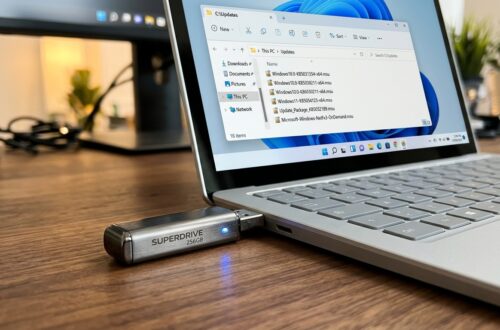
Yes, but only if you already have the update file. Microsoft offers offline update packages (MSU files) via the Microsoft Update Catalog, and ISOs for feature updates. Download them on a connected machine, transfer via USB, and run the installer locally.
Will a manual update wipe my files or apps?
No. Both the Settings route and the Installation Assistant perform in-place updates that preserve files, apps, and settings. Only a clean install or a reset removes your data — and neither is part of a normal manual update.
Why does Windows Update show “You’re up to date” when I know a patch exists?
Gradual rollout. Microsoft staggers delivery to catch bugs before they hit every device. If you need the patch immediately, check the Microsoft Update Catalog for the specific KB number and install it directly. For build-specific links, see thedirect download links guide.
Manual updating is a five-minute skill worth having. The Settings route covers 95% of cases, Optional updates cover the rest, and the Installation Assistant is your escape hatch for feature upgrades. Learn all three and you’ll never be at the mercy of a stalled update again.
Related Guides in this Series
Continue exploring essential tips and companion topics:
- 🛠️ Windows 11 Update Stuck or Failing? Step-by-Step Fixes — How to clear SoftwareDistribution cache, reset update services, and unfreeze downloads.
- ⬇️ Windows 11 Update Download: Direct Links for Every Version — Official Microsoft Update Catalog direct links for standalone MSU and CAB packages.