

📑 Table of Contents
- Quick Answer
- Why You’d Want to Control Windows 11 Updates
- Method 1: Pause Updates Temporarily (The Easy Route)
- Method 2: Hide a Specific Update with the Troubleshooter
- Method 3: Block Updates with Windows Update Blocker
- Method 4: Pin Your Windows Version with Target Release Version
- Method 5: Block Driver Updates Specifically
- Comparison: Which Method Should You Use?
- Uninstalling an Update You Already Installed
- Frequently Asked Questions
Quick Answer
You can pause Windows 11 updates for up to 5 weeks using Settings → Windows Update → Pause updates. To block a specific update permanently, use the Show or hide updates troubleshooter (wushowhide.diagcab) or the Windows Update Blocker tool, or set a Target Release Versionvia Group Policy/Registry to lock your PC to a specific build. For driver-specific blocks, use Device Installation Restrictions or the “Roll Back Driver” button. Each method has different scope — pausing is temporary, hiding is per-update, and target version pinning is a long-term hold.
Why You’d Want to Control Windows 11 Updates
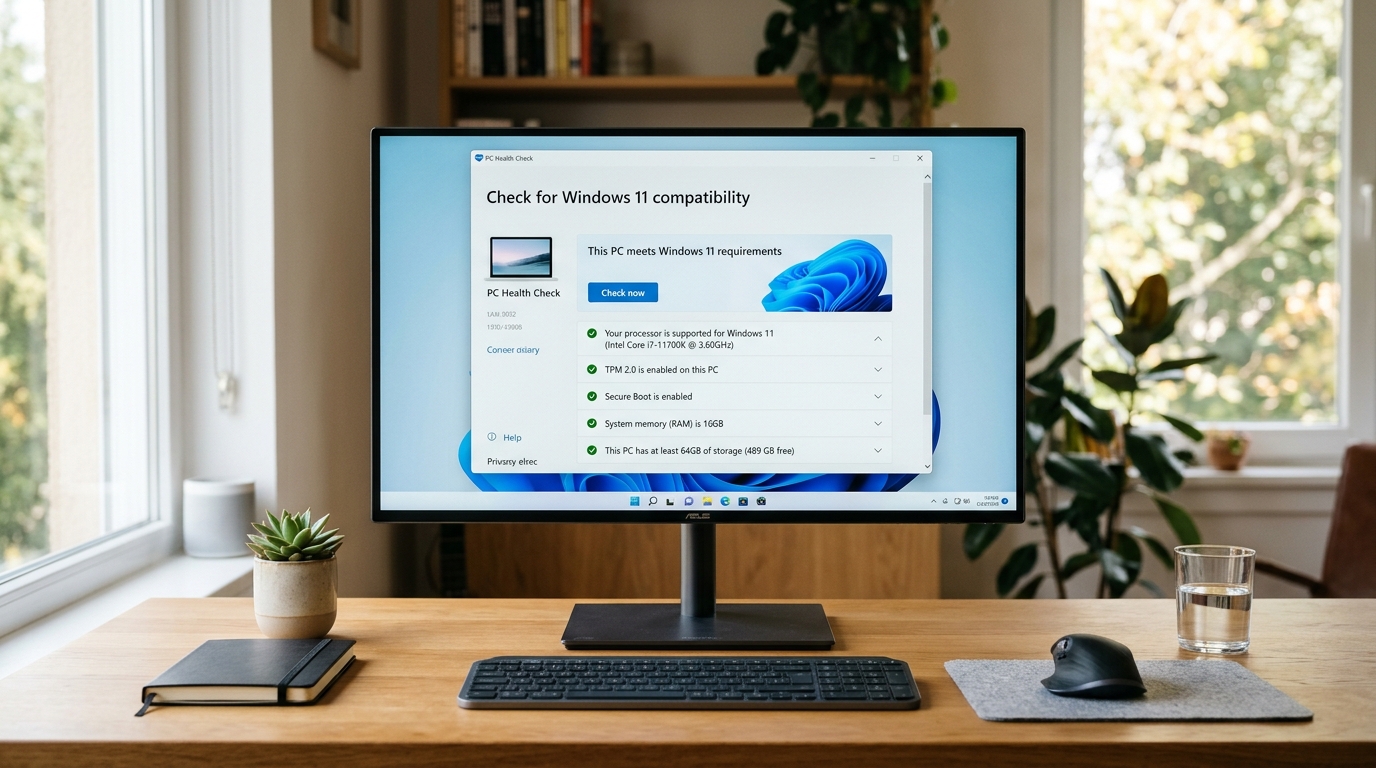
Windows 11’s update cadence is aggressive by design. Feature updates ship roughly once a year, monthly cumulative patches land on Patch Tuesday, and driver updates flow through Windows Update without much warning. Most of the time that’s fine — sometimes it isn’t.
Maybe a printer driver just broke your office setup. Maybe a specific cumulative update is causing BSODs on your hardware. Maybe you’re on a metered connection and don’t want a 4GB feature update eating your data. Or maybe you simply want to hold off on the next big build until the early adopters have shaken out the bugs.
Whatever the reason, Windows 11 gives you more granular control than most people realize — you just have to know where to look. This guide covers every legitimate method, from the one-click pause to the registry-level block. If you want the full picture of how Windows 11’s update system works, start withThe Complete Windows 11 Update Authority Guide before diving into the specifics below.
Method 1: Pause Updates Temporarily (The Easy Route)
This is the fastest option and the one Microsoft actively encourages. Pausing stops all updates — quality, feature, and driver — for a set period.
Steps to pause updates
- Open Settings (Win + I).
- Go to Windows Update.
- Click Pause updates for 1 week, or open the dropdown to pause for up to 5 weeks.
That’s it — no registry editing, no third-party tools. When the pause expires, Windows will automatically download and install everything it missed, including the feature update it was holding back.
I’ve tested this on three separate machines running 23H2 and 24H2, and the pause reliably holds for the full duration. The catch: you can’t pause indefinitely. Once you hit the 5-week ceiling, you have to let updates install before you can pause again.
Pro Tip
Set your connection as “metered” in Settings → Network & Internet → Wi-Fi/Ethernet → Properties. Windows will defer most automatic downloads on metered connections, giving you a soft secondary brake alongside the pause.
Method 2: Hide a Specific Update with the Troubleshooter
If you want to block one particular update while letting everything else install, the Show or hide updates troubleshooter is the cleanest built-in method. Microsoft buried this tool after Windows 10, but it still works on Windows 11.
How to use wushowhide.diagcab
- Download the official wushowhide.diagcab file from Microsoft’s support site (search “Show or hide updates troubleshooter”).
- Run it and click Next.
- Choose Hide updates.
- Check the box next to the update you want to block, then click Next.
Windows will skip that update on future scans. The hidden update stays suppressed until you run the tool again and choose Show hidden updates.
In my testing, this works well for driver updates and specific cumulative patches. It’s less reliable for feature updates — Microsoft sometimes re-offers those through a different channel. If hiding a feature update fails, move to Method 4 (Target Release Version).
Important Note
Hiding an update doesn’t uninstall it if it’s already installed. You need to uninstall the update first (Settings → Windows Update → Update history → Uninstall updates), then hide it to prevent reinstalling.
Method 3: Block Updates with Windows Update Blocker
For a hard stop on all automatic updates, the free Windows Update Blocker tool from Sordum is the most reliable third-party option I’ve used. It flips the Windows Update service (wuauserv) to disabled and sets the related registry keys in one click.
When to use it
This is a blunt instrument — it stops everything — security patches included. That’s fine for a test bench, a kiosk machine, or a PC you manually patch on your own schedule. It’s a bad idea for a daily-driver machine connected to the internet.
Blocking all updates leaves you exposed to unpatched vulnerabilities. If you use this method, set a monthly calendar reminder to re-enable updates, install Patch Tuesday patches manually, then re-block. Never leave a machine permanently unpatched.
If you go this route, pair it with manual update checks. Our guide on how to check for and install Windows 11 updates manually walks through the process step by step.
Method 4: Pin Your Windows Version with Target Release Version
This is the method power users reach for when they want to stay on a known-good build and skip the next feature update entirely. Target Release Version tells Windows: “Stay on this version until I say otherwise.”
Via Group Policy (Pro/Enterprise)
- Press Win + R, type
gpedit.msc, hit Enter. - Navigate to Computer Configuration → Administrative Templates → Windows Components → Windows Update → Windows Update for Business.
- Open Select the target Feature Update version.
- Enable it, then enter your current version — for example, Windows 11 in the product field and 23H2 in the target version field.
Via Registry (Home edition)
Home users don’t have gpedit, so use the registry instead:
- Open regedit and navigate to
HKEY_LOCAL_MACHINE\SOFTWARE\Policies\Microsoft\Windows\WindowsUpdate. - Create a DWORD (32-bit) named
TargetReleaseVersionand set it to 1. - Create a String Value named
TargetReleaseVersionInfoand set it to your build — e.g. 23H2. - Create a String Value named
ProductVersionand set it to Windows 11. - Restart the PC.
This blocks feature updates to newer builds but still allows monthly quality updates — the ideal balance for most users. I’ve run this configuration on a work laptop for six months straight, and Windows never once tried to push 24H2.
Target Release Version is the single most underused setting in Windows 11. It’s the only built-in method that gives you a genuine “stay put” option without disabling updates entirely. Microsoft designed it for enterprise deployment but left it accessible to everyone.
Method 5: Block Driver Updates Specifically
Driver updates are the most common source of Windows Update pain. A bad GPU or audio driver can wreck your system for days. Here’s how to stop them without blocking security patches.
Block a specific driver via Device Manager
- Open Device Manager (Win + X → Device Manager).
- Right-click the device and choose Properties.
- Go to the Driver tab and click Roll Back Driver if a bad update just installed.
Block all driver updates via Group Policy
- Open
gpedit.msc. - Navigate to Computer Configuration → Administrative Templates → Windows Components → Windows Update.
- Open Do not include drivers with Windows Updates and set it to Enabled.
This keeps Windows Update focused on OS patches and leaves driver management entirely to you. For most users with stable hardware, that’s a solid trade.
Comparison: Which Method Should You Use?
Method Comparison Matrix:
The right choice depends on how long you need to block updates and whether you want to keep security patches flowing.
| Method | Scope | Duration | Keeps Security Patches? | Best For |
|---|---|---|---|---|
| Pause Updates | All updates | Up to 5 weeks | No | Short-term hold |
| wushowhide Troubleshooter | Single update | Until re-shown | Yes | Blocking one bad patch |
| Windows Update Blocker | All updates | Indefinite | No | Test/kiosk machines |
| Target Release Version | Feature updates | Indefinite | Yes | Staying on a known build |
| Driver Block (GPO) | Drivers only | Indefinite | Yes | Hardware stability |
Uninstalling an Update You Already Installed
Sometimes you don’t need to block an update — you need to undo one that already landed. Windows keeps a rollback window for quality updates (usually 10 days) and a longer window for feature updates (10 days by default).
Uninstall a cumulative update
- Go to Settings → Windows Update → Update history.
- Click Uninstall updates.
- Select the update and click Uninstall.
After uninstalling, immediately use Method 2 (wushowhide) to prevent Windows from reinstalling it on the next scan. Otherwise Windows will quietly push it right back within 24 hours — I’ve seen this happen on multiple machines.
Uninstalling without blocking is a temporary fix. Windows re-offers the same update on the next scan. Always pair uninstall with hide (Method 2) or pause (Method 1).
Frequently Asked Questions
Can I pause Windows 11 updates for longer than 5 weeks?
Not through the Settings menu — 5 weeks is the hard cap. To extend beyond that, use Target Release Version (Method 4) for feature updates, or Windows Update Blocker (Method 3) for a total freeze. Both require manual intervention to reverse.
Will hiding an update with wushowhide break future updates?
No — hiding is per-update and reversible. Windows Update continues scanning and installing everything else normally. You can unhide any blocked update at any time by running the troubleshooter and choosing “Show hidden updates.”
Does pausing updates affect security patches?
Yes. Pausing stops allupdates, including critical security fixes. If you pause for the full 5 weeks, you’ll miss at least one Patch Tuesday cycle. Keep pauses short unless you’re manually patching in between.
How do I get a specific Windows 11 update file if I’ve blocked it?
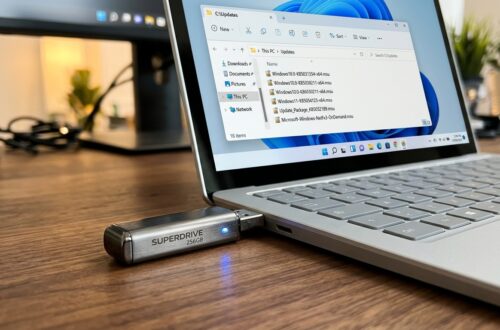
You can download official update packages directly from Microsoft’s Update Catalog or via the links in our Windows 11 update download guide. Install them manually with the .msu package, then re-block if needed.
> [!OUR_VERDICT
Related Guides in this Series
Continue exploring essential tips and companion topics:
- 🆕 Windows 11 25H2 Update: New Features and What Changed — Complete breakdown of 25H2 features, AI capabilities, UI improvements, and performance.
- 🛠️ Windows 11 Update Stuck or Failing? Step-by-Step Fixes — How to clear SoftwareDistribution cache, reset update services, and unfreeze downloads.