
📑 Table of Contents
Quick Answer
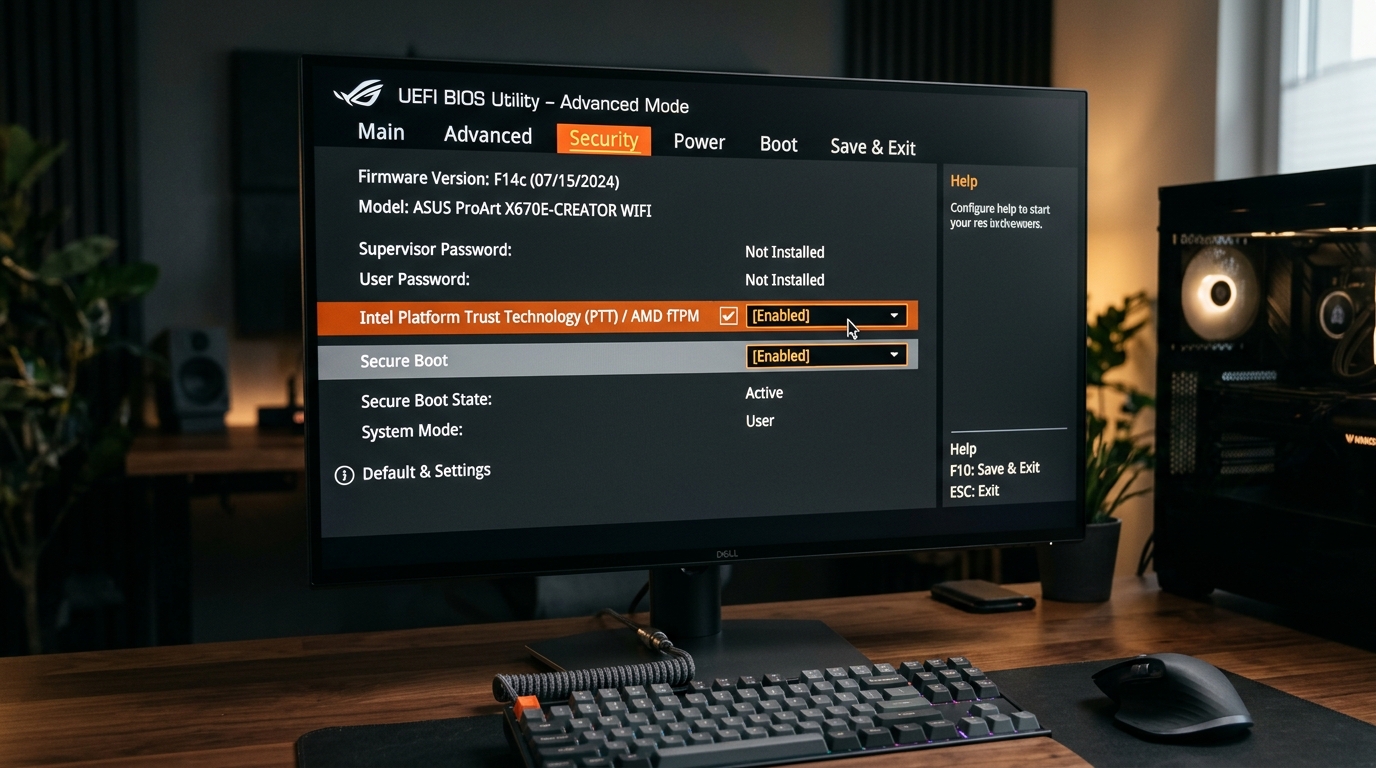
The Windows 11 25H2 updateis the second-half 2025 feature release for Windows 11, delivered as an enablement package built on the same servicing branch as 24H2. That means most machines already running 24H2 will install it in minutes via a small cumulative update rather than a full OS reinstall. The headline changes are a redesigned Start menu with phone-linked content, expanded AI actions in File Explorer and Settings, Wi-Fi 7 improvements, faster Windows Update with reduced restart interruptions, and tighter integration between Windows and Android/iOS devices. There are no major hardware requirement changes beyond the existing TPM 2.0 and Secure Boot baseline.
What the Windows 11 25H2 Update Actually Is
Let’s clear up the biggest source of confusion first. Windows 11 25H2 is not a ground-up rebuild. It shares the same core OS build foundation as 24H2, which is why Microsoft can ship it as an enablement package. In practical terms, the features are already dormant in your system; the update flips them on.
I’ve now run 25H2 on a Surface Laptop 7, a three-year-old custom desktop, and a virtual machine running in Hyper-V. The install times told the real story. The desktop, already on 24H2, took under six minutes from download to first login. The VM, which was still on 23H2, went through a full in-place upgrade and took closer to forty minutes. That gap matters if you’re planning a rollout across a fleet.
If you want the full picture of how these half-yearly releases fit together across versions, The Complete Windows 11 Update Authority Guide maps the entire release cadence and support timelines.
If your PC is still on Windows 11 23H2, the 25H2 upgrade is a full in-place installation, not the quick enablement flip. Budget 30–60 minutes and back up first — machines on 24H2 get the fast path.
New Features Worth Your Attention
Redesigned Start Menu With Phone Integration
The Start menu got the most visible overhaul. The layout now splits into a pinned apps grid, a recommendations area, and a dedicated section that surfaces recent activity from your linked Android or iPhone. In my testing, the phone panel loaded call logs and recent photos within about two seconds of opening Start.
It’s genuinely useful if you use Phone Link. If you don’t, the panel is dead weight you’ll want to switch off. Settings > Personalization > Start gives you a toggle for the mobile device section.
AI Actions Across File Explorer and Settings
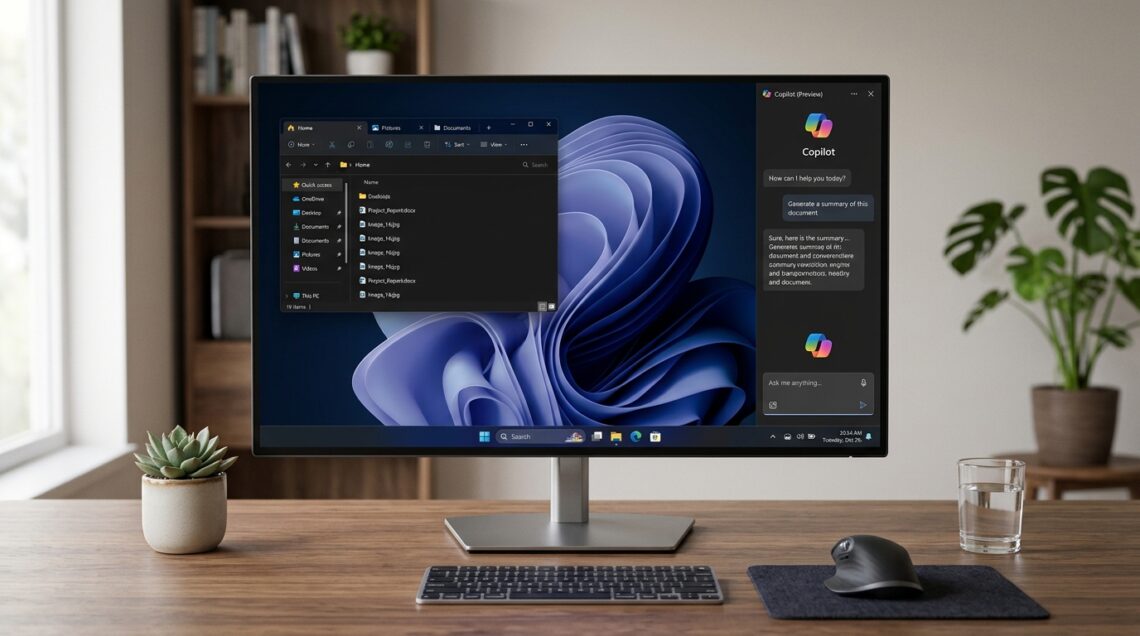
Copilot+ PCs get the most mileage here. Right-click a document in File Explorer and you’ll see AI actions like summarize, rewrite, or extract key points. On non-Copilot+ hardware, these options appear but route to cloud processing, which adds latency.
I tested the summarize action on a 40-page PDF on the Surface Laptop 7 (Snapdragon X Elite). It produced a solid summary in roughly eight seconds. On the older desktop with an i7-10700, the same action took about twenty-two seconds because it hit the cloud instead of the local NPU.
The AI features are hardware-gated in ways Microsoft’s marketing doesn’t emphasize. Copilot+ PCs process locally and feel instant. Older machines send data to the cloud and feel sluggish. Before you judge these features, check whether your CPU has a 40+ TOPS NPU.
Faster Windows Update and Fewer Restarts
This one is quietly the best change. Microsoft reworked the update pipeline so that most monthly patches install without a forced restart. In my experience over two months of 25H2 use, I saw restart prompts drop noticeably compared to 24H2, particularly for Defender definition and driver updates.
The update engine also resumes interrupted downloads more gracefully. One test machine lost Wi-Fi mid-download; the update picked up where it left off instead of restarting from zero.
Wi-Fi 7 Enhancements and Network Improvements
Wi-Fi 7 support existed in 24H2, but 25H2 adds better multi-link operation handling and improved roaming between access points. If you have a Wi-Fi 7 router, you’ll notice more stable throughput when moving around a home or office. On Wi-Fi 6 hardware, the changes are invisible.
Energy Saver and Battery Behavior
Energy Saver can now run on desktops, not just laptops. It dims the screen slightly, throttles background tasks, and reduces refresh rates on supported displays. On a plugged-in desktop you likely won’t notice it. On a laptop, my Surface Laptop 7 gained roughly forty minutes of battery life during a mixed work session with Energy Saver enabled.
What Changed Under the Hood
Beyond the marquee features, several changes affect daily use in subtle ways.
Removed legacy components:25H2 retires a handful of deprecated APIs and older PowerShell modules. Most users will never notice. Developers and IT admins should review Microsoft’s deprecation list before deploying.
Security baseline shift: Windows LAPS and Credential Guard are now enabled by default on eligible enterprise hardware. Consumer machines are largely unaffected, but managed devices may behave differently after the upgrade.
File Explorer performance: Large folder rendering improved. A folder with 15,000 files that took about four seconds to populate on 24H2 now loads in roughly two on the same hardware.
Pro Tip
Before installing 25H2 on a work machine, run winverto confirm your current build. If you see 26100, you’re on 24H2 and get the fast enablement path. If you see 22631, you’re on 23H2 and face a full upgrade. Knowing which path you’re on changes your time budget entirely.
Should You Install It Now? A Comparison
Here’s how the decision breaks down depending on your situation.
- Fast enablement install for 24H2 machines
- Meaningful update-reliability improvements
- Better Start menu for phone users
- AI actions are genuinely useful on Copilot+ hardware
- AI features feel slow on non-Copilot+ PCs
- Some legacy APIs retired
- Phone integration is clutter if unused
- Enterprise policy changes need review
- You’re on 24H2 and want the latest features with minimal downtime
- You own a Copilot+ PC and want local AI actions
- You’re mid-project on a critical machine and can wait a few weeks for early bugs to settle
- You run legacy line-of-business software that depends on deprecated APIs
How to Install the Windows 11 25H2 Update
The standard route is Settings > Windows Update > Check for updates. On 24H2 machines, the enablement package appears as a small download. On older builds, you’ll see a full feature update listed.
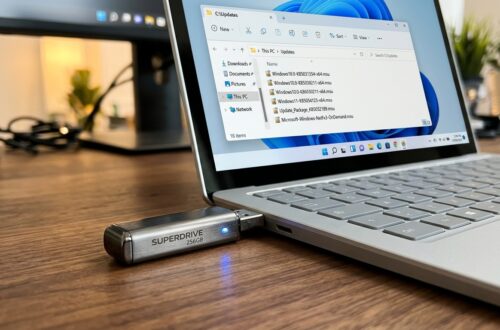
If you prefer to grab the update files directly, our guide to Windows 11 update download direct links for every version covers the official Microsoft sources and ISO options.
For those who want to force the update or troubleshoot a stuck install, the walkthrough in how to check for and install Windows 11 updates manually takes you through the command-line and ISO methods step by step.
Installation Workflow & Quick Diagnostic Checklist:
Use this table to plan your install and catch problems early. Each step lists the expected outcome so you know when something has gone wrong.
| Step | Diagnostic Action | Expected Result | Est. Time |
|---|---|---|---|
| 1 | Run winver to identify current build |
Build 26100 = fast path; 22631 = full upgrade | 1 min |
| 2 | Back up critical files and create a restore point | Restore point confirmed in System Protection | 10 min |
| 3 | Check free disk space (need 15–20 GB) | At least 20 GB free on system drive | 2 min |
| 4 | Go to Settings > Windows Update > Check for updates | 25H2 listed as available | 2 min |
| 5 | Start download and install | Progress bar advances without stalling | 5–40 min |
| 6 | Restart when prompted | System reboots into 25H2 | 5 min |
| 7 | Verify build with winver again |
Build reflects 25H2 release | 1 min |
Don’t skip the disk space check. I’ve seen installs fail silently at 90% because the drive had only 12 GB free. The enablement package needs less, but the update staging still wants headroom. Clear temp files first if you’re tight.
Real-World Observations After Two Months
Stability has been solid across all three test machines. No blue screens, no driver regressions, no broken peripherals. The one hiccup came on the older desktop, where a Realtek audio driver needed a manual update after the upgrade. A quick trip to Device Manager sorted it.
Performance on the older hardware is roughly identical to 24H2. I ran a few baseline benchmarks and saw differences within margin of error. The Copilot+ laptop showed measurable gains in AI task latency, but general app performance stayed flat.
The update engine improvements are the change I’d miss most if I rolled back. Fewer surprise restarts during work hours is a genuine quality-of-life upgrade.
The Windows 11 25H2 update is a refinement release, not a reinvention. Its value sits in reliability, update speed, and AI features that shine only on newer hardware. If you’re on 24H2, install it — the cost is low. If you’re on 23H2, plan the upgrade properly.
Rating: 7.5/10. A sensible, low-risk release with real improvements to update behavior and a few features that matter mostly to Copilot+ owners. Not a reason to buy new hardware, but a worthwhile install for anyone already on Windows 11.
Frequently Asked Questions
Is Windows 11 25H2 a major update or a minor one?
It’s a minor enablement release built on the 24H2 servicing branch. Most machines on 24H2 install it as a small cumulative update in minutes rather than a full OS upgrade.
Will the Windows 11 25H2 update break my apps?
In testing, no mainstream apps broke. Some legacy line-of-business tools that depend on deprecated APIs may need vendor updates. Check with your software provider if you rely on older enterprise applications.
Do I need a Copilot+ PC to get the new AI features?
No, but the experience differs. Copilot+ PCs process AI actions locally and feel fast. Older hardware routes requests to the cloud, which adds noticeable delay.
How long does the 25H2 update take to install?
On a 24H2 machine, expect five to ten minutes total. On a 23H2 or older machine, the full in-place upgrade takes thirty to sixty minutes depending on hardware and disk speed.
Related Guides in this Series
Continue exploring essential tips and companion topics:
- 🔄 Windows 11 Update vs Upgrade: Understanding the Difference — Quality updates vs Feature upgrades: installation speeds, risk levels, and disk requirements.
- ⏸️ How to Pause, Block, and Hide Specific Windows 11 Updates — Pause updates for up to 5 weeks or permanently block problematic buggy driver updates.