
📑 Table of Contents
- Quick Answer: Windows 11 Update vs Upgrade
- Why the Distinction Actually Matters
- Windows 11 Update: The Monthly Maintenance Cycle
- Windows 11 Upgrade: A New Version, Not a Patch
- Side-by-Side: Update vs Upgrade at a Glance
- How to Tell Which One Windows Is Offering You
- Practical Workflow: Handling Both Without Breaking Things
- Which One Should You Install First?
- Common Misconceptions, Cleared Up
- Frequently Asked Questions
Quick Answer: Windows 11 Update vs Upgrade
An update patches the Windows 11 version you already have — security fixes, driver improvements, and small feature tweaks delivered through Windows Update. An upgrademoves you to an entirely new Windows version (like 22H2 to 23H2, or Windows 10 to Windows 11) and replaces the underlying build. Updates are routine and low-risk. Upgrades are bigger, take longer, and can change how your PC behaves.
Why the Distinction Actually Matters
Microsoft’s wording is famously sloppy. You’ll see “upgrade” used for a feature update, “update” used for a full version change, and both terms thrown around in the same Settings screen. That confusion costs people real time.
I’ve watched users panic after clicking what they thought was a simple update, only to find Windows reinstalling itself over lunch. I’ve also seen people put off a critical security update because they assumed it was “just an upgrade” and would break their workflow. Neither reaction is necessary once you know which is which.
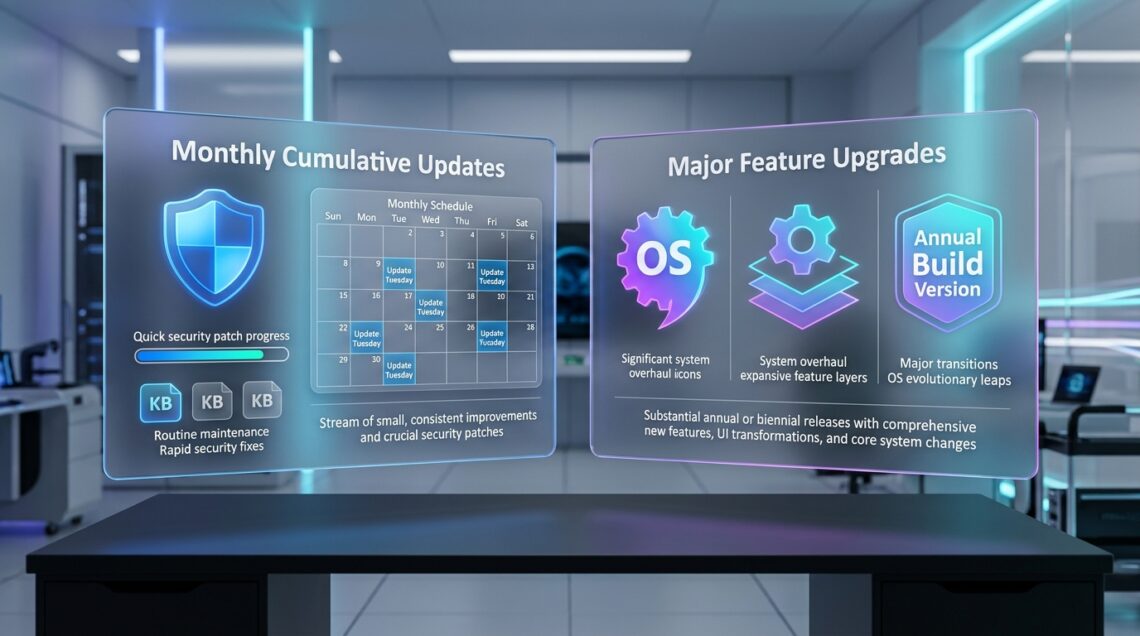
Here’s the practical split. Updates arrive roughly every month on Patch Tuesday and install in minutes. Upgrades land once or twice a year and can take 30–90 minutes depending on your hardware. If you want the full picture of how these pieces fit together,The Complete Windows 11 Update Authority Guide is the place to start.
Windows 11 Update: The Monthly Maintenance Cycle
Think of updates as housekeeping. They keep the current build secure and stable without changing its identity.
What Counts as an Update
- Security patches (the monthly cumulative update)
- Driver and firmware deliveries through Windows Update
- Definition updates for Windows Defender
- .NET and Visual C++ runtime patches
- Small “quality improvements” that don’t bump the build number
These install quietly in the background. Most finish in under five minutes, and a restart is usually optional until the next Patch Tuesday. The build number stays the same — that’s your tell.
How to Spot an Update in Settings
Open Settings → Windows Update. If the item says “Cumulative Update for Windows 11” or references a KB number, it’s an update. You’ll see a small download size, often under 1 GB. This is also where you’ll find the manual install workflow — we cover the exact clicks inHow to Check for and Install Windows 11 Updates Manually.
Pro Tip
Check your build number with Win + R → winverbefore and after installing. If the number didn’t change, you installed an update. If it jumped (e.g., 22621 → 22631), you installed an upgrade.
Windows 11 Upgrade: A New Version, Not a Patch
An upgrade replaces the OS layer. It’s the difference between repainting a room and knocking down a wall.
Two Types of Upgrade
Feature upgradesmove you between Windows 11 versions (22H2 → 23H2 → 24H2). Microsoft ships these via Windows Update as an “enablement package” now, which is smaller and faster than the old full reinstall — but it’s still an upgrade. The build number changes.
Version upgrades move you from Windows 10 to Windows 11 entirely. These require hardware checks (TPM 2.0, Secure Boot, supported CPU) and take considerably longer.
What Changes After an Upgrade
- Build number jumps to a new branch
- New features appear in Settings and the Start menu
- Some legacy drivers may need reinstalling
- Third-party antivirus sometimes needs a re-register
- Rollback window opens for 10 days (Settings → System → Recovery)
Feature upgrades have a 10-day rollback window. After that, uninstalling the upgrade requires a full reinstall. If something feels off after upgrading, decide within those 10 days.
Side-by-Side: Update vs Upgrade at a Glance
The table below maps the practical differences you’ll actually notice. Use it to decide how much time to plan for and whether a backup is worth the effort.
| Factor | Update | Upgrade |
|---|---|---|
| Frequency | Monthly (Patch Tuesday) | 1–2 times per year |
| Install time | 3–10 minutes | 30–90 minutes |
| Build number | Unchanged | Changes |
| Download size | 100 MB – 1 GB | 2 GB – 5 GB (enablement package is smaller) |
| Restart required | Usually, but deferrable | Always, often multiple |
| Rollback option | Uninstall via Windows Update history | 10-day rollback window |
| Risk level | Low | Moderate |
| Backup recommended | No | Yes, strongly |
How to Tell Which One Windows Is Offering You
Windows Update doesn’t always label things clearly. Here’s the reliable test I use on every machine I touch.
Look at the update name. Anything with a KB number is a cumulative update. Anything labeled “Feature update to Windows 11, version XXHX” is an upgrade. If you’re offered “Windows 11, version 24H2 is available,” that’s a full feature upgrade, not a patch.
For direct download links to specific version installers — useful when Windows Update is stuck or you need to upgrade a machine offline — see Windows 11 Update Download: Direct Links for Every Version.
Since Windows 11 22H2, Microsoft has shifted most feature upgrades to enablement packages. That’s why a “23H2 upgrade” now downloads in under 200 MB and installs in minutes. It flips a switch that unlocks features already sitting dormant on your drive. The catch: enablement packages only work if your device has the prerequisite servicing stack updates installed first.
Practical Workflow: Handling Both Without Breaking Things
The order you do things in matters. Here’s the sequence that’s saved me the most headaches across dozens of machines.
Diagnostic Checklist & Quick Action Workflow:
Run through these steps before and after any Windows change. Each row takes a few seconds and catches the most common failures.
| Step | Diagnostic Action | Expected Result | Est. Time |
|---|---|---|---|
| 1 | Check free disk space on C: | 20 GB+ free for upgrades, 5 GB for updates | 30 sec |
| 2 | Run winver and note the build | Baseline recorded | 15 sec |
| 3 | Pause third-party antivirus | Prevents install blocks | 1 min |
| 4 | Create a restore point (upgrades only) | Rollback safety net | 2 min |
| 5 | Install pending updates first | Servicing stack current | 5–10 min |
| 6 | Then install the feature upgrade | Build number changes | 30–90 min |
| 7 | Recheck drivers and network | No yellow bangs in Device Manager | 5 min |
Never install a feature upgrade while a cumulative update is still pending a restart. I’ve seen this cause a boot loop on two separate laptops. Finish the update, restart, then upgrade.
Which One Should You Install First?
Always updates before upgrades. The servicing stack update is what makes the upgrade possible in the first place. Skip it and the upgrade will fail with an error code like 0x8007000D, which tells you nothing useful.
Once you’re current on updates, the upgrade is usually just a matter of time and disk space. If you’re on Windows 10 and wondering whether the jump is worth it, the answer depends on your hardware. TPM 2.0 and a supported CPU are hard requirements — no workaround is officially supported anymore.
- You have 20 GB+ free, TPM 2.0 enabled, and a supported CPU
- You can spare 30–90 minutes without needing the PC
- You’re mid-project and can’t tolerate a restart
- Your hardware fails the PC Health Check
- You rely on legacy drivers that haven’t been updated for the new build
Common Misconceptions, Cleared Up
“Upgrades are riskier than updates”
Not exactly. A feature upgrade through an enablement package is barely riskier than a cumulative update. The risk is concentrated in version upgrades (Windows 10 → 11) and older full-reinstall upgrades. Modern feature upgrades are genuinely low-drama.
“Updates are optional, upgrades are mandatory”
The reverse is closer to reality. Security updates are effectively mandatory if you want to stay protected. Feature upgrades can be deferred for months using Windows Update’s pause controls. Microsoft pushes, but you can say “not yet.”
“Both wipe my files”
Neither wipes your files under normal circumstances — both preserve user data in place. That said, backups exist for the abnormal circumstances — power loss mid-install, corrupted downloads, bad drivers. For upgrades, a backup is cheap insurance.
Updates keep your current build safe. Upgrades move you to a new build. Install updates first, always, and treat upgrades as a scheduled task rather than a surprise.
Frequently Asked Questions
Does a Windows 11 update change my build number?
No. Cumulative updates patch the existing build without changing its number. If your build number changed after installing, you actually installed an upgrade — even if Windows labeled it as an update.
Can I skip an upgrade and stay on my current version?
Yes, temporarily. Windows Update lets you pause feature upgrades for up to several months, and you can defer them via Group Policy on Pro editions. Eventually, support for older versions ends and you’ll need to move — but you have time.
Is a feature upgrade the same as a version upgrade?
Not quite. A feature upgrade moves you between Windows 11 releases (22H2 → 23H2). A version upgrade moves you from Windows 10 to Windows 11. Both change the build number, but the latter involves hardware compatibility checks.
What happens if an upgrade fails halfway through?
Windows rolls back automatically to the previous build. You’ll see a message like “We couldn’t complete the updates, undoing changes.” The rollback usually takes 10–20 minutes and your files stay intact. Check disk space first — it’s the most common cause of mid-upgrade failures.
Treat updates as routine and upgrades as planned events. That single mental shift eliminates most Windows 11 confusion. Install updates on Patch Tuesday, schedule upgrades for a quiet afternoon, and keep 20 GB free on C: at all times.
Related Guides in this Series
Continue exploring essential tips and companion topics:
- 🚨 Fix Windows 11 Update Error Codes: 0x800f081f and More — Resolving 0x80070002, 0x800f081f, 0x80248007, and common CBS manifest corruption codes.
- 🆕 Windows 11 25H2 Update: New Features and What Changed — Complete breakdown of 25H2 features, AI capabilities, UI improvements, and performance.