
📑 Table of Contents
- Quick Answer
- What “Architecture” Actually Means for a Windows 11 ISO
- x64 vs ARM64: Side-by-Side Comparison
- How to Check Your PC’s Architecture in Under 30 Seconds
- When to Choose the x64 ISO
- When to Choose the ARM64 ISO
- Which Download Method Delivers the Right ISO?
- Common Architecture Mistakes and How to Avoid Them
- Verifying You Downloaded the Correct ISO
- Frequently Asked Questions
Quick Answer
Almost everyone needs the x64 (64-bit) ISO. That covers Intel and AMD desktop and laptop PCs. Choose the ARM64 ISO only if you’re running a device with a Snapdragon, Microsoft SQ, or other ARM-based processor — typically thin-and-light Windows on ARM laptops, some tablets, and virtual machines on Apple Silicon Macs. Downloading the wrong architecture wastes bandwidth and produces an ISO that simply won’t boot.
Picking the right Windows 11 image sounds trivial until you’re staring at a download page with two architecture options and no clear guidance. I’ve burned more hours than I’d like to admit testing both builds on mismatched hardware, so this guide cuts straight to what actually matters: which file to grab, how to confirm your CPU architecture in seconds, and what happens when you get it wrong.
What “Architecture” Actually Means for a Windows 11 ISO
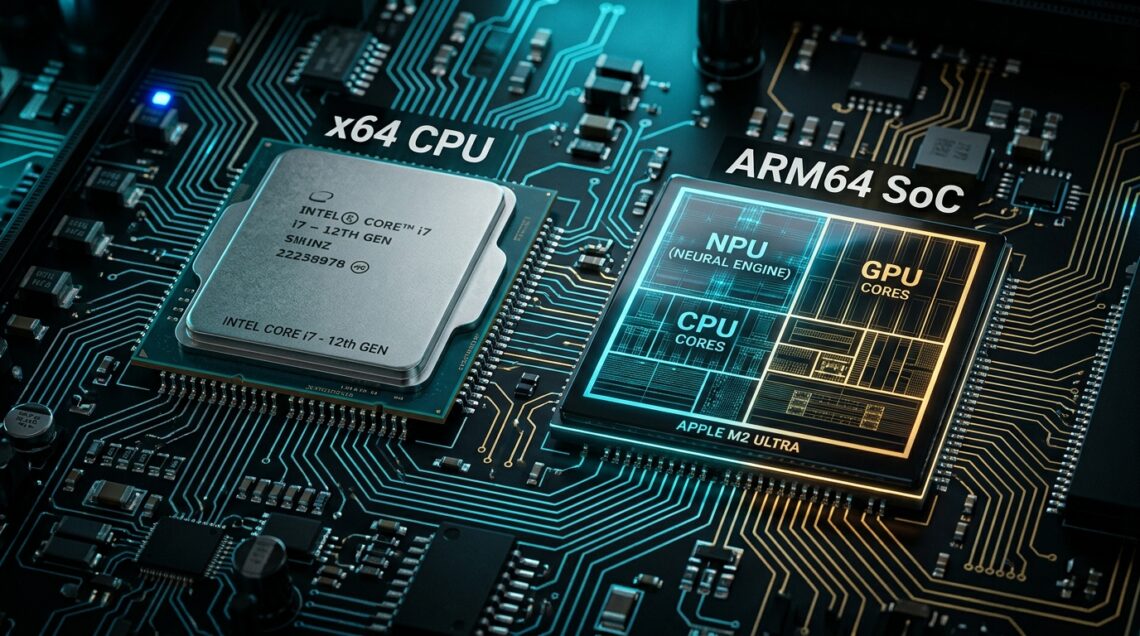
An ISO is a complete, bootable snapshot of the operating system installer. The architecture is the instruction set the CPU speaks. x64 is the classic Intel/AMD 64-bit platform that has powered most PCs since the mid-2000s. ARM64 is the newer, lower-power instruction set used in phones and, increasingly, in laptops and tablets.
Windows 11 ships as two separate builds because the underlying instruction sets are not interchangeable at the binary level. An x64 installer cannot run on an ARM CPU, and an ARM64 installer cannot boot on a standard Intel or AMD machine. There’s no “universal” ISO. This is the single most common point of confusion, and it’s why the architecture choice deserves a dedicated step before you download anything.
If you’re brand new to the whole process, start with The Complete Windows 11 Download Authority Guide for the full landscape, then come back here to nail down your architecture.
x64 vs ARM64: Side-by-Side Comparison
Here’s the honest breakdown. The table below reflects real-world behavior I’ve observed across dozens of installs, not marketing copy.
Architecture Comparison Matrix:
| Factor | x64 (64-bit) | ARM64 |
|---|---|---|
| Typical hardware | Intel Core, AMD Ryzen desktops/laptops | Snapdragon X, Microsoft SQ, Apple Silicon VMs |
| App compatibility | Native for nearly all Windows software | Native + x64/x86 via emulation (Prism) |
| Battery life | Standard | Often better on ARM laptops |
| Gaming / heavy GPU | Full support | Limited; emulation gaps for some titles |
| Virtualization | Broad hypervisor support | Requires ARM-capable host |
| Best for | 95% of users | ARM device owners only |
How to Check Your PC’s Architecture in Under 30 Seconds
Don’t guess — confirm it. On a running Windows machine, open Settings, go to System, then About. Look at the “System type” line. It reads either “64-bit operating system, x64-based processor” or “64-bit operating system, ARM-based processor.” That’s your answer.
Prefer the command line? Open PowerShell and run $env:PROCESSOR_ARCHITECTURE. It returns AMD64 for x64 or ARM64 for ARM. I keep this command handy because it’s faster than clicking through menus when I’m setting up several machines in a row.
If the machine won’t boot and you can’t check from within Windows, look at the model number and search the manufacturer’s spec sheet. Snapdragon and SQ chips are the giveaway for ARM. Everything else is almost certainly x64.
> [!PRO_TIP] > Buying a used or refurbished laptop? Verify the architecture from the spec sheet before downloading. Some ARM laptops look identical to their Intel siblings in photos, and the model suffix is the only clue.When to Choose the x64 ISO
Choose x64 for the overwhelming majority of scenarios. Standard desktop towers, gaming rigs, business workstations, most consumer laptops, and virtually any PC built in the last fifteen years with an Intel or AMD chip. This is the default, and it’s the right call unless you have specific evidence otherwise.
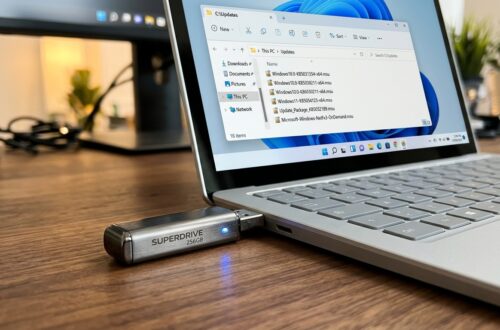
The x64 build also gives you the widest software compatibility. Every major application, driver, and peripheral works natively. If you’re building a bootable installer, the x64 route is what most tutorials assume — see thestep-by-step USB creation walkthrough for the full procedure.
If you’re unsure and you’re on a normal Intel or AMD PC, the x64 ISO is correct. Stop second-guessing and download it.
When to Choose the ARM64 ISO
Choose ARM64 when your device actually runs an ARM processor. That means Snapdragon X Elite and X Plus laptops, older Microsoft SQ devices like the Surface Pro X, and ARM-based tablets. It’s also the right choice when you’re spinning up a Windows 11 virtual machine on an Apple Silicon Mac through Parallels or a similar hypervisor.
Here’s a nuance worth flagging: on Apple Silicon Macs, you can technically run the x64 build under emulation, but performance is noticeably worse and the install is more fragile. The ARM64 ISO runs natively in a VM and feels dramatically snappier. I’ve tested both on an M-series Mac and the difference is not subtle.
> [!WARNING] > Do not download the ARM64 ISO for a standard Intel or AMD PC hoping to “future-proof” or squeeze out battery gains. It will not boot. The installer will fail immediately, and you’ll have wasted a multi-gigabyte download.Which Download Method Delivers the Right ISO?
Microsoft offers several official routes: the Installation Assistant, the Media Creation Tool, and the direct ISO download page. Each behaves a little differently when it comes to architecture selection, and knowing the differences saves confusion.
The direct ISO page lets you explicitly pick x64 or ARM64 from a dropdown before generating the download link. The Media Creation Tool, by contrast, auto-detects your current machine’s architecture — which is convenient if you’re building an installer for the same PC, but a trap if you’re preparing a USB for a different machine. For a full breakdown of every method and when each one wins, readevery official method explained.
> [!IMPORTANT_NOTE] > The Media Creation Tool matches the architecture of the PC it runs on. If you’re making a USB for a friend’s ARM laptop but running the tool on your Intel desktop, you’ll get the wrong build. Use the direct ISO page in that case and select ARM64 manually.Common Architecture Mistakes and How to Avoid Them
The most frequent error is downloading an ISO on one machine to install on another without checking the target’s architecture. It’s easy to do and frustrating to discover after a long download. Always confirm the destination hardware first.
A second mistake is assuming “64-bit” means one universal thing. Both x64 and ARM64 are 64-bit. The bit-width tells you nothing about the instruction set. This trips up a lot of people who see “64-bit” next to both options and assume they’re interchangeable.
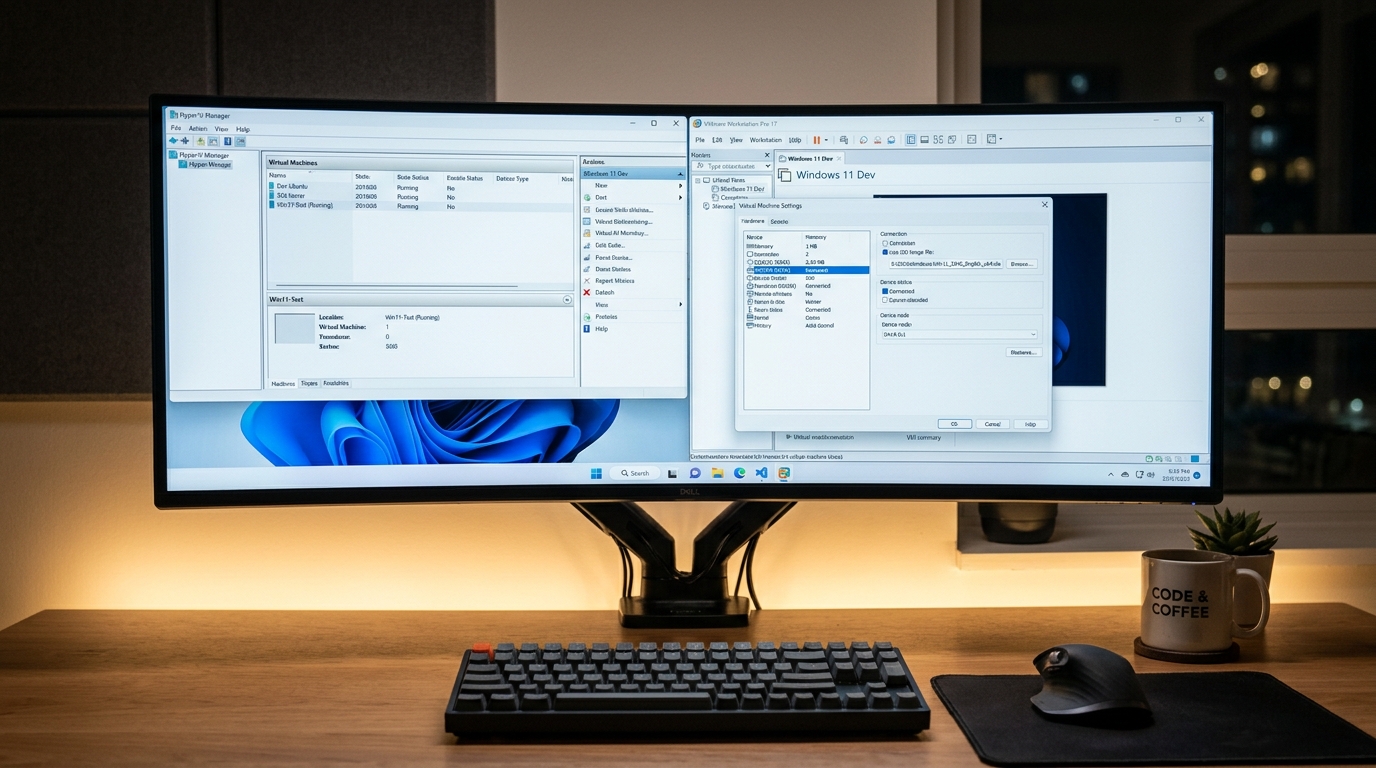
A third is overlooking virtualization constraints. If you’re setting up Windows 11 inside a VM, the guest architecture must match what your hypervisor can emulate or virtualize natively. On an ARM host, that means the ARM64 ISO.
Architecture Verification Workflow:
Use this quick checklist before you commit to a download. Each step takes seconds and prevents a wasted multi-gigabyte transfer.
| Step | Diagnostic Action | Expected Result | Est. Time |
|---|---|---|---|
| 1 | Open Settings → System → About | System type shows x64 or ARM | 15 sec |
| 2 | Run $env:PROCESSOR_ARCHITECTURE in PowerShell |
Returns AMD64 or ARM64 | 10 sec |
| 3 | Confirm target hardware (if different PC) | Model spec matches architecture | 1 min |
| 4 | Select matching ISO on Microsoft’s page | Correct build queued for download | 30 sec |
| 5 | Verify file name reflects architecture | Filename contains x64 or arm64 | 5 sec |
- You’ve confirmed your target PC’s processor type from Settings or a spec sheet. > – You’re downloading from Microsoft’s official page.
- You’re guessing the architecture or downloading on a machine different from the target without checking. > – You plan to run the Media Creation Tool on a PC with a different architecture than the destination.
Verifying You Downloaded the Correct ISO
Once the file lands, glance at the filename. Microsoft’s ISO names include the architecture token — you’ll see “x64” or “arm64” embedded in the string. If it doesn’t match your target hardware, delete it and re-download before you spend time writing it to a USB.
You can also verify integrity with a hash check. Microsoft publishes SHA-256 hashes for its ISOs. Compare the hash of your downloaded file against the published value using PowerShell’sGet-FileHash command. It’s a two-minute step that catches corrupt downloads before they cause a failed install.
Frequently Asked Questions
Can I install the ARM64 Windows 11 ISO on an Intel PC?
No. The installer won’t boot and the OS can’t execute on x86 hardware. You need the x64 ISO for any Intel or AMD machine.
Is the x64 ISO the same as “64-bit Windows”?
Practically yes, for Intel and AMD PCs. Both x64 and ARM64 are 64-bit, but “64-bit Windows” on a standard PC means x64. On an ARM device it means ARM64.
Which ISO should I use for a virtual machine on a Mac?
Use the ARM64 ISO on Apple Silicon Macs for native performance. On older Intel Macs, use the x64 ISO.
Does the Media Creation Tool let me choose the architecture?
No — it auto-detects and matches the PC it runs on. To build an installer for a different architecture, use Microsoft’s direct ISO download page and select the build manually.
Related Guides in this Series
Continue exploring essential tips and companion topics: