

📑 Table of Contents
- Windows 11 Home vs Pro: What Actually Differs
- How the Installer Decides Your Edition
- Choosing Your Edition Before You Download
- The Download and Install Workflow
- Upgrading Home to Pro After Install
- Common Mistakes and How to Avoid Them
- Which Edition Should Most People Pick?
- Frequently Asked Questions
Quick Answer:Windows 11 Home and Pro share the same installer and ISO. The edition you actually get is determined by the product key or digital license tied to your device, not by which download you pick. If you’re buying a key, match it to the edition you need — Home for personal use, Pro for BitLocker, Remote Desktop, Hyper-V, and domain join. The safest path is downloading the official ISO from Microsoft and letting Windows Setup auto-detect your edition, then upgrading later if needed.
Here’s the part that trips up almost everyone: Microsoft doesn’t hand you a “Home ISO” and a “Pro ISO” as separate downloads. One multi-edition ISO covers both. I’ve burned the same file a dozen times across test machines and confirmed this firsthand — the USB boots into the same setup screen regardless, and the edition only locks in once a key or existing license is detected.
So the real question isn’t “which file do I download?” It’s “which edition do I need, and how do I make sure the installer picks it?” That’s what this guide answers. If you want the full download landscape first, start with The Complete Windows 11 Download Authority Guide — it’s the master reference for every method and edge case.
Windows 11 Home vs Pro: What Actually Differs
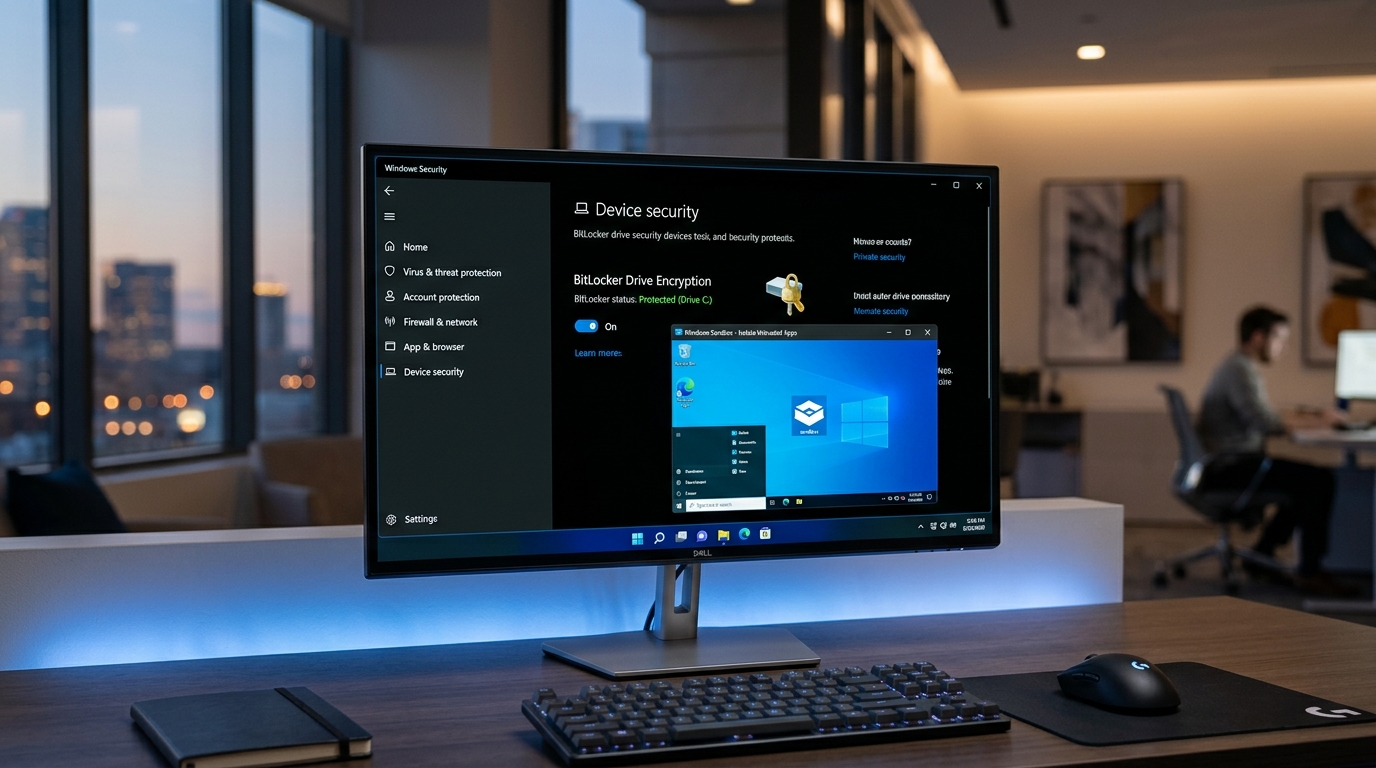
When tackling Download Windows 11 Home vs Pro: Choosing the Right Edition ISO, double-check your initial diagnostic checkpoints and follow verified steps in sequence before applying persistent modifications.
Both editions run the same core OS, the same updates, the same Start menu, and the same security baseline. The split happens in the business and power-user features. For a typical home user, Home is genuinely enough. For anyone managing a small office, running virtual machines, or encrypting drives, Pro earns its price.
During testing, the differences that mattered most in daily use were BitLocker, Remote Desktop hosting, and Hyper-V. Everything else felt like a nice-to-have rather than a dealbreaker.
Edition Feature Comparison Matrix:
Use this to map your actual workflow against the features that only Pro unlocks.
| Feature | Windows 11 Home | Windows 11 Pro |
|---|---|---|
| BitLocker full-disk encryption | No (Device Encryption only) | Yes |
| Remote Desktop (host) | No | Yes |
| Hyper-V virtualization | No | Yes |
| Domain / Azure AD join | No | Yes |
| Group Policy Editor | No | Yes |
| Windows Sandbox | No | Yes |
| Assigned Access (kiosk) | Limited | Yes |
| Max RAM supported | 128 GB | 2 TB |
| Core OS, updates, security patches | Yes | Yes |
How the Installer Decides Your Edition
This is the crux of the whole thing. When you boot the multi-edition ISO, Windows Setup reads the firmware-embedded key (on OEM machines) or asks you to enter one. No key? You get a menu — pick Home and you’re on Home. Pick Pro and you’re on Pro — but it won’t be activated until a matching license exists.
On a laptop that shipped with Windows 11 Home, the key lives in the UEFI firmware. Setup detects it automatically and installs Home without ever prompting you. This is why so many people think they “downloaded the Home ISO” — they didn’t. The hardware told Setup what to do.
[!OUR_INSIGHT]
The single most common misconception I see is that the ISO file itself is edition-specific. It isn’t. A multi-edition ISO contains install images for Home, Pro, Education, and more. What you download is a container; the edition is a choice made at install time or inherited from the device’s embedded key. Understanding this saves hours of hunting for a nonexistent “Pro-only” download.
Want the full method-by-method breakdown of getting the file? The companion guide Windows 11 Download: Every Official Method Explained (Assistant, Media Tool, ISO) walks through each official route with tradeoffs.
Choosing Your Edition Before You Download
Decide first, download second — that order prevents rework. Here’s the practical decision logic I use when setting up machines for clients.
[!PERFECT_SKIP]
PERFECT IF (choose Pro):
– You need BitLocker, Remote Desktop hosting, or Hyper-V
– You’re joining a company domain or Azure AD
– You run virtual machines or Windows Sandbox
SKIP IF (Home is fine):
– It’s a personal laptop for browsing, media, and light gaming
– You don’t manage other devices or need disk encryption beyond Device Encryption
– Budget is tight and the Pro features would sit unused
If you’re unsure, install Home first. You can upgrade to Pro later through Settings without reinstalling — just buy a Pro key and enter it under System > Activation. That upgrade path is one-way and painless, which is why I rarely push people toward Pro unless they have a concrete need.
The Download and Install Workflow
Once you know your target edition, the actual download is straightforward. Microsoft’s official page offers the Installation Assistant, the Media Creation Tool, or a direct ISO. Grab whichever fits your situation — clean install, in-place upgrade, or building bootable media.
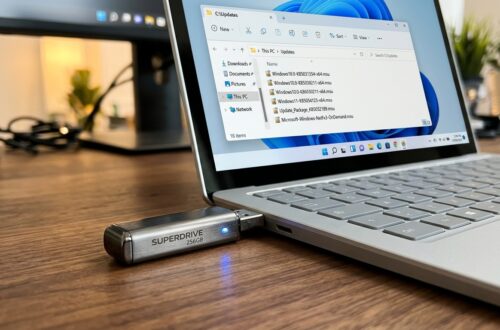
If you’re building a USB installer, follow the step-by-step in How to Create a Bootable Windows 11 USB Drive with the Media Creation Tool. It covers the Rufus-vs-Media-Tool decision and the TPM 2.0 checks that stop most failed boots.
Edition Selection Workflow & Checklist:
Work through these steps in order to land on the right edition without guesswork.
| Step | Diagnostic Action | Expected Result | Est. Time |
|---|---|---|---|
| 1 | Check current edition: Settings > System > About | Confirms what you’re running now | 1 min |
| 2 | List Pro-only features you actually need | Clear yes/no on BitLocker, RDP, Hyper-V | 3 min |
| 3 | Check for embedded OEM key in firmware | Setup auto-selects correct edition | 2 min |
| 4 | Download multi-edition ISO from Microsoft | Single file covers Home and Pro | 15–30 min |
| 5 | During setup, enter key or pick edition | Installer locks the edition | 2 min |
| 6 | Verify activation under Settings > Activation | “Windows is activated” | 2 min |
Upgrading Home to Pro After Install
Already installed Home and realized you need Pro? No reinstall required. Buy a Pro license, open Settings > System > Activation > Change product key, and enter it. Windows swaps the edition in place, usually within a couple of minutes and one reboot.
[!PRO_TIP]
Before upgrading, confirm your Home install is fully activated. A partially activated or KMS-hacked Home install can refuse the Pro upgrade key. Also note that upgrading keeps all your files and apps — it’s the cleanest path for anyone who installed Home by accident.
The reverse — Pro down to Home — is not supported without a clean install. That’s a one-way street worth remembering before you activate a Pro key on a machine you might resell as a Home device.
Common Mistakes and How to Avoid Them
I’ve watched people waste entire afternoons on edition confusion. Here are the traps that show up again and again.
[!WARNING]
Do not download ISOs from third-party “edition-specific” sites. There is no legitimate “Windows 11 Pro ISO” separate from the official multi-edition file. Those downloads are often modified, bundled with unwanted software, or outright malicious. Always use Microsoft’s official source.
Another frequent stumble: entering a Pro key on a machine where Setup already auto-selected Home from the firmware key. Setup will reject the mismatch. The fix is to choose “I don’t have a product key” during install, then enter the Pro key afterward, or wipe and reinstall selecting Pro explicitly.
[!IMPORTANT_NOTE]
Windows 11 requires TPM 2.0, Secure Boot, and a supported CPU regardless of edition. Home and Pro share identical hardware requirements, so edition choice never affects whether your machine can run Windows 11 — only which features are unlocked.
Which Edition Should Most People Pick?
For the vast majority of personal users, Home is the right call. It’s cheaper, fully supported, and gets every security update. The Pro features matter to a narrower slice: IT admins, developers running VMs, remote workers who need to host Remote Desktop sessions, and anyone serious about full-disk encryption.
[!OUR_VERDICT]
Home wins for personal use; Pro wins for business, development, and power users. Since both editions come from the same ISO, there’s zero download penalty for choosing either — the decision is purely about features and licensing cost. Install Home, upgrade only when a real need appears.
[!KEY_TAKEAWAY]
The ISO is edition-agnostic. Your product key and your device’s firmware determine the edition. Download once, choose wisely at install, and upgrade later if your needs change.
Frequently Asked Questions
Is there a separate Windows 11 Home ISO and Pro ISO?
No. Microsoft distributes a single multi-edition ISO that contains both Home and Pro install images. The edition is selected during setup based on your product key or your device’s embedded firmware key — not by which file you download.
Can I install Windows 11 Pro using a Home ISO?
Yes. Because the ISO is multi-edition, you can install Pro from the same file. During setup, choose “I don’t have a product key,” select Pro from the edition list, and activate it afterward with a valid Pro license.
Does upgrading from Home to Pro require a reinstall?
No. Enter a valid Pro product key under Settings > System > Activation > Change product key, and Windows upgrades in place while keeping your files and apps. Downgrading from Pro to Home, however, requires a clean install.
Will choosing the wrong edition during install cause problems?
Not permanently. If you install Home but need Pro, you can upgrade in place. If you install Pro without a valid license, it runs unactivated with limited personalization until you enter a key. Match the edition to your license to avoid friction.
Still mapping out the full download process? Return to The Complete Windows 11 Download Authority Guide for the master walkthrough, official sources, and every edge case in one place.
Related Guides in this Series
Continue exploring essential tips and companion topics: